Contents
Chapter 01
Creating an account, logging in, and passwords
The loan agreement you sign is what governs your loan. This guide explains how to use the website; where the two ever differ, your signed agreement prevails.
Section 01
Your login is your IC number and a password
Your IC number identifies your account. Your password is what proves it is you.
This matters: IC numbers are not secret in Malaysia. Somebody knowing yours does not let them into your account, and it never will. Look after the password.
Section 02
Creating an account
You need an account before you can apply for a loan. Registering is free and does not commit you to anything.
Have these ready
- Your IC number
- A phone that receives SMS
- An email inbox you can open
Open the register page
on the login page, press Create a new account. The page is headed Create your account, and it has two steps.
Fill in your details
Full Name (as in IC); IC Number (the dashes are added as you type; this becomes your login ID); Mobile Number (verified in the next step, and the number we use to reach you); Email; Set a password and Confirm password (the rules are under the field). Tick the Terms and Conditions box — Read in full opens them right there. Then press Continue: nothing is sent yet, this only checks the form is complete.
Verify your phone
your phone number and email are shown again and cannot be changed here. Press Send Code, type the code from the SMS and press Verify. You may first be asked to complete an "are you human" check, below the email address.
Verify your email
until the phone shows Verified, the email part is greyed out and says "Verify your phone number to continue." Then press Send Code next to your email address, type the 6-digit code we email you, and press Verify.
Create the account
press Create account. It only becomes available once both the phone and the email show Verified. Your account is created at this moment, not before.
Log in
you are taken to the login page, which shows a green box saying "If your details are correct, your account is ready. Please log in." Log in with your IC number and the password you just chose.
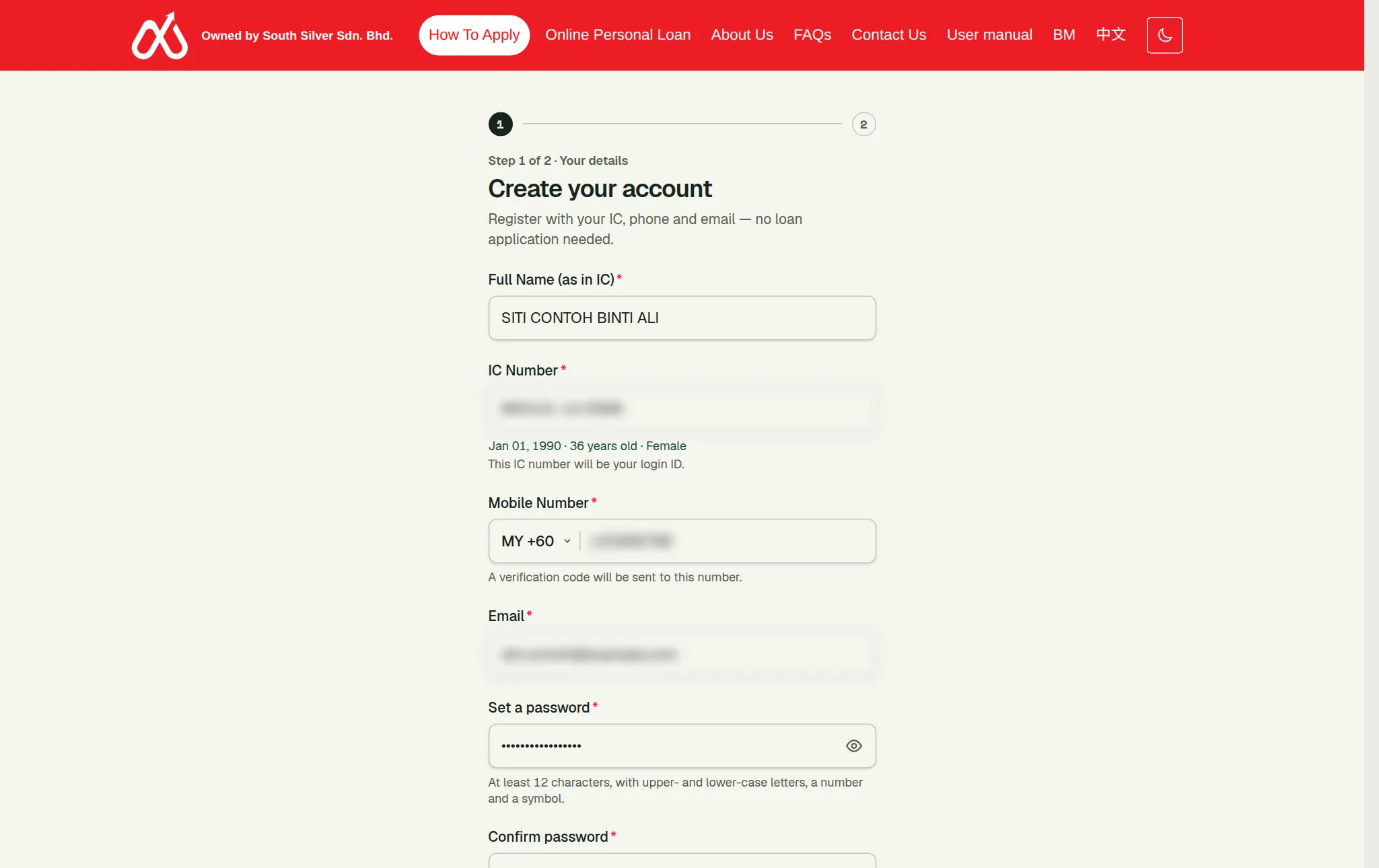
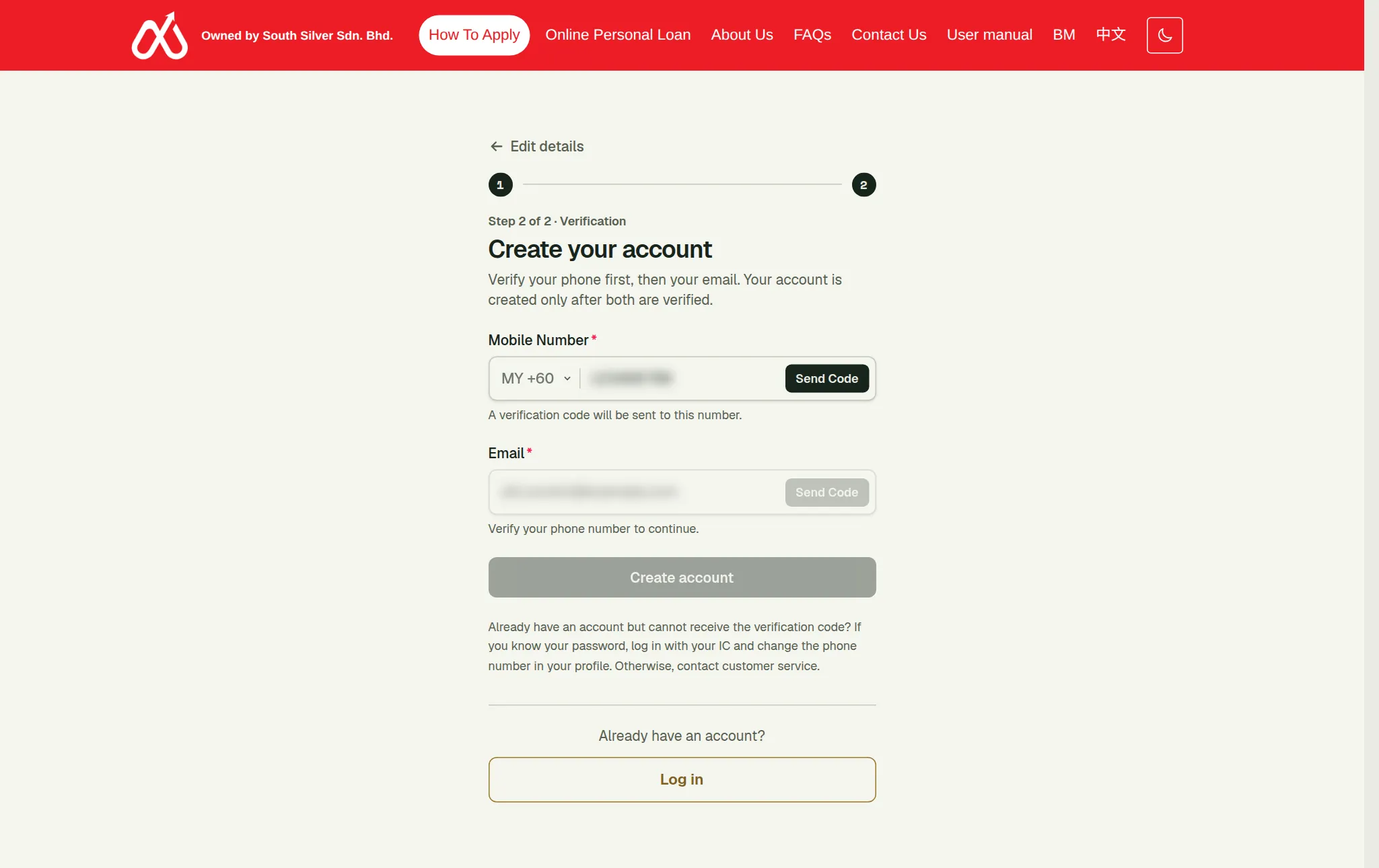
To correct anything, press Edit details at the top: you go back to step 1 with everything you typed still there. If you change the phone number, both checks have to be done again; if you change only the email address, only the email check does. If the email address is already used by another account, a Change email address link takes you back to step 1 to use a different one.
The phone verification lasts 15 minutes. If you take longer than that to finish, the page asks you to verify your phone again.
The green box is worded that way on purpose.
The same page appears whether or not that IC was already registered, so the registration form cannot be used to find out who has an account with us.
If you never receive the SMS code
Wait for the countdown to finish and ask for the code again. If it still does not arrive, the number may be wrong, or it may already belong to an account.
If you already have an account and cannot receive the code, contact customer service. Once you are signed in you can change your phone number yourself on My account (it needs your password and a code sent to the new number). If you cannot sign in, our staff can change it after confirming who you are.
Section 03
Logging in
Type your IC number and password
on the login page.
Press Log in
you may also be asked to complete an "are you human" check. If it fails, refresh the page and try again.
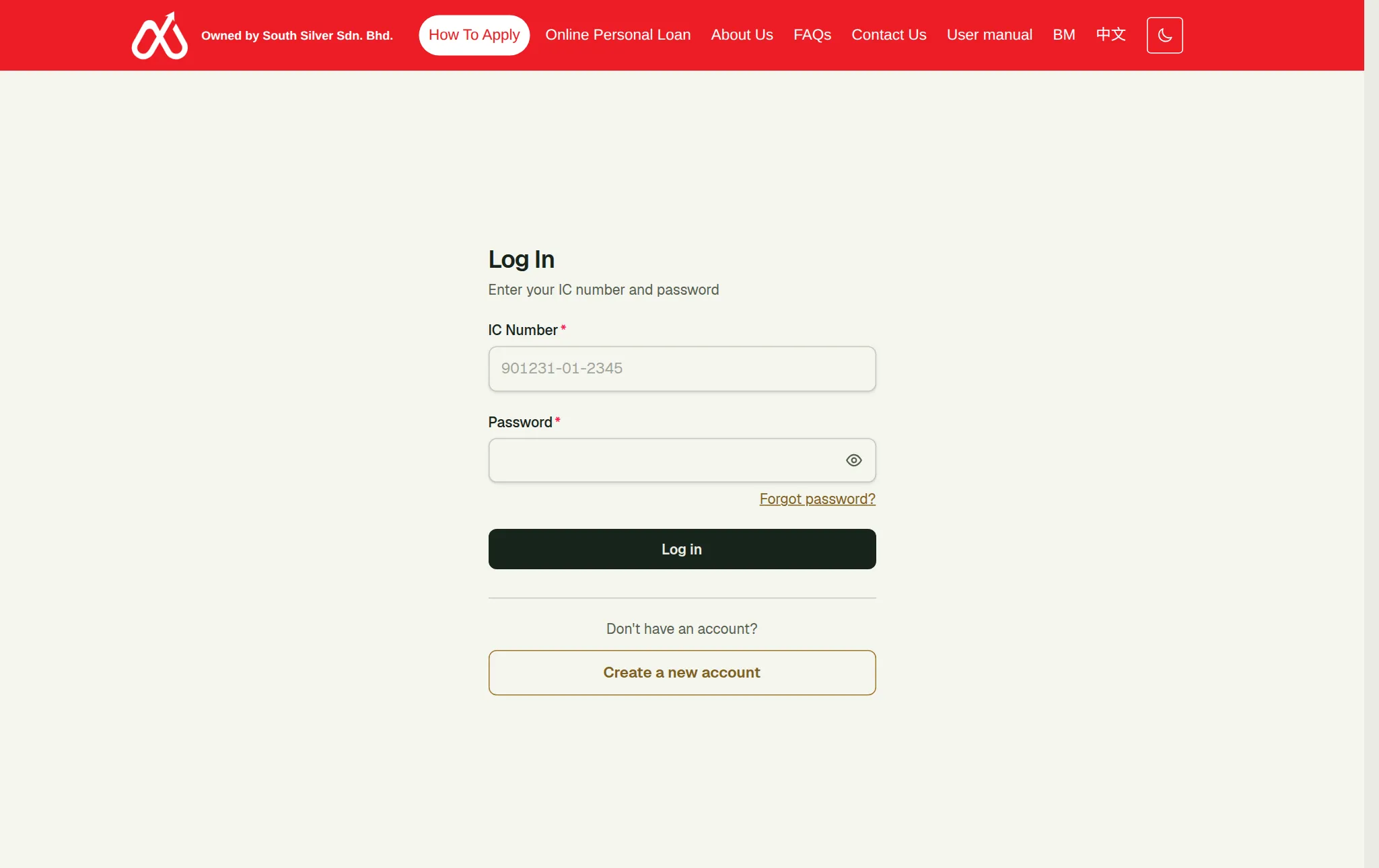
If either is wrong, you get one message: "Invalid IC number or password." It does not tell you which one was wrong, and it does not tell you whether an account with that IC exists. That is on purpose — otherwise anyone could use the login page to find out who is a customer of ours.
"Your session has expired"
For your safety you are logged out automatically after a period of inactivity. You are also logged out everywhere if your password is reset — through Forgot password or by our staff. Changing your own password while logged in is the one exception: every other device is signed out, but the one you are using stays signed in, so you are not thrown out of the page you just used. If you were logged out while using the site, the login page tells you so. Nothing is lost — log in again and carry on.
Section 04
Forgot your password
On the login page, press Forgot password?
Ask for a code
enter your IC number and choose where the code should go — SMS to registered phone or Email — then press Send code.
Read the message
you always see the same one: "If the details match, a verification code has been sent." We do not confirm whether that IC has an account, and we never display your phone number or email address back to you.
Get the code
it goes only to the phone number or email address already on your account, never to one typed in on this screen.
Set the new password
enter the code, type your new password twice, and press Reset password.
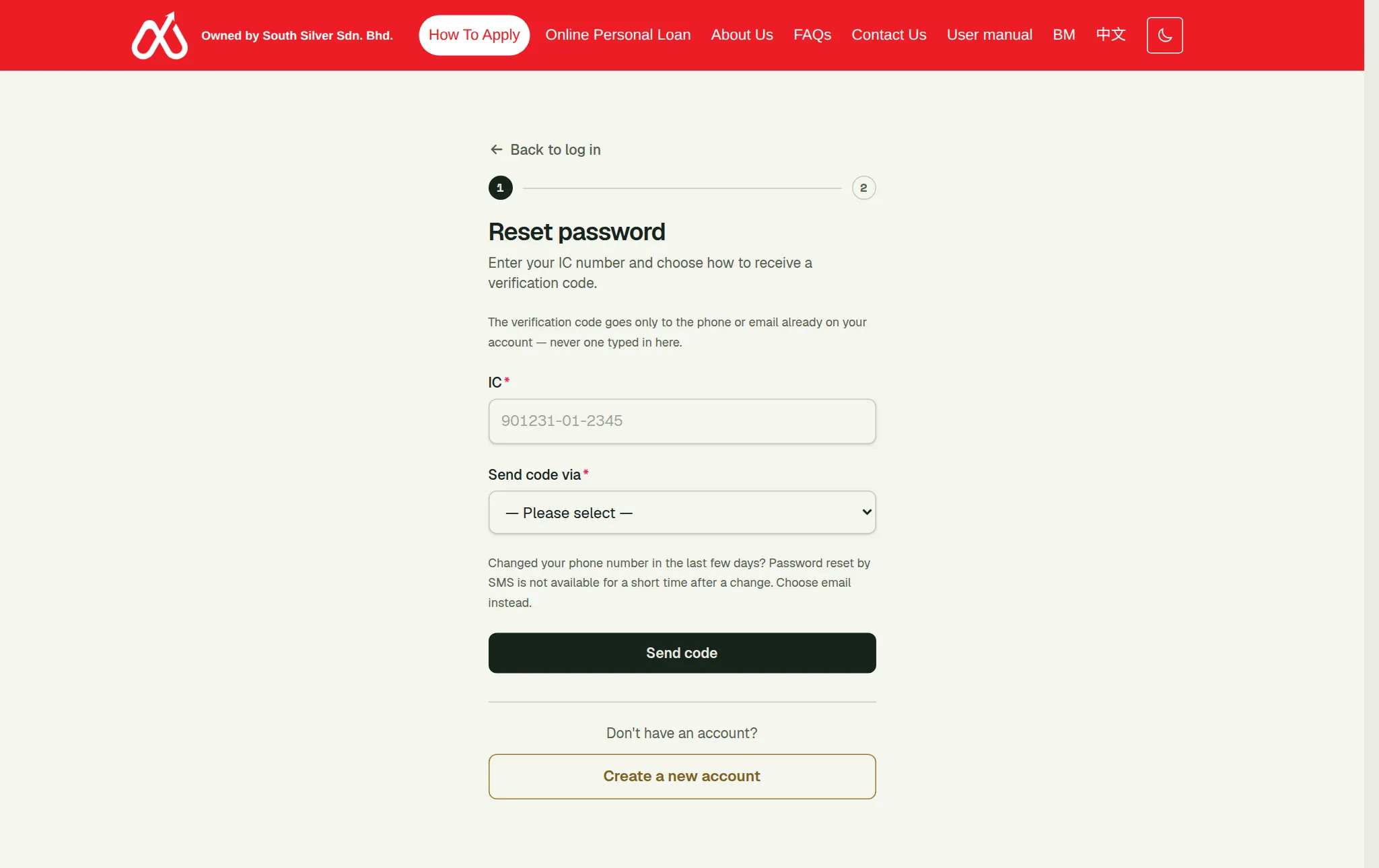
Not sure? Choose SMS.
Email only works if the address on your account has been verified; if it has not, nothing is sent — and the message on screen is the same one either way. If you no longer have access to either, the website cannot help you — contact customer service.
After that you are taken back to the login page to sign in with the new password. You are not logged in automatically, and any other device that was signed in as you is signed out.
If the code is wrong, expired, or the IC has no account, you get one message for all three. Only a password that is too weak gets its own specific message, because that one is about what you just typed rather than about which accounts exist.
Section 05
"Set a new password" right after logging in
Sometimes you log in with the correct password and, instead of your dashboard, you are asked to set a new password immediately. No verification code is needed for this step.
This happens when our staff have reset your password — for example, if we created your account for you and gave you a temporary password, or if you asked us to reset it over the phone. The temporary password is not used up by reaching this screen: if you leave without choosing a new one, logging in with it again brings you straight back here.
Choose a password of your own and press Set password and continue. You then go to your dashboard as normal.
If you see "This link has expired or was already used", simply log in again to start over.
Section 06
"Please review our Terms and Conditions"
Occasionally, after logging in, a message covers the page asking you to accept our Terms and Conditions. You cannot dismiss it or postpone it, because accepting is the whole point of it.
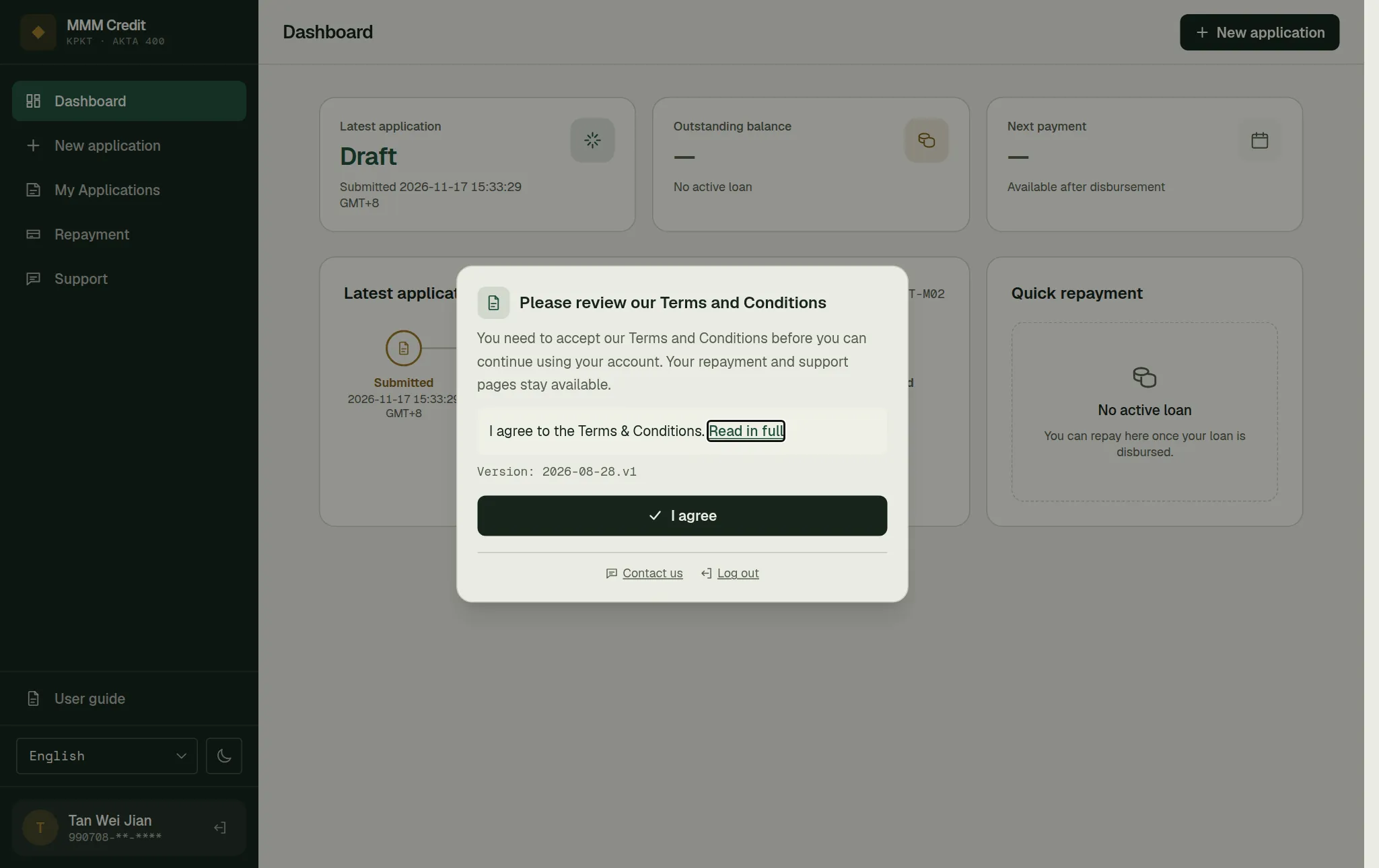
You see it if you have never accepted our terms — for instance if our staff created your account for you — or if we have published an updated version since you last accepted.
You have four things you can do:
- Read in full — opens the full Terms and Conditions right there, before you decide. We would rather you did.
- I agree — records your acceptance and lets you back in.
- Contact us if you have a question about them.
- Log out, which matters on a shared device.
Two pages stay open. Even while this message is showing, you can still reach Repayment and see what you owe and when, and you can still reach Support. We will not let an unaccepted set of terms be the reason a payment of yours goes late, or the reason you cannot ask us about them. Contact us in the list above goes to Support and opens a ticket in your account — not the public contact form — so our reply comes back to you in the same place.
Still stuck?
Talk to us.
Use the Contact Us form. If you have an account, log in and open a ticket under Support in your account: our replies stay on the ticket.
Never put your password or a verification code in a message or a ticket. Our team will never ask you for it.