Contents
Chapter 11
Signing your loan agreement
The loan agreement you sign is what governs your loan. This guide explains how to use the website; where the two ever differ, your signed agreement prevails.
Once your loan is approved, we prepare your loan agreement and ask you to sign it here, online. The signature is a digital signature made by our signing partner, MSC Trustgate, with your own certificate.
Section 01
Sign, step by step
Each step is explained in full below.
Have these ready
- The phone number or email on your account, for the signing code
Watch the video
it cannot be skipped
Check the summary
your loan's figures
Read the agreement
on the page itself
Sign with a code
WhatsApp, SMS or email
After you sign
the company, the witness, the stamp
Section 02
When you are asked
Your dashboard says "Waiting for you: sign your loan agreement", with a Sign agreement button. If you open this page when nothing is waiting, it says so and there is nothing to do.
Section 03
Step 1 of 5 — watch the video
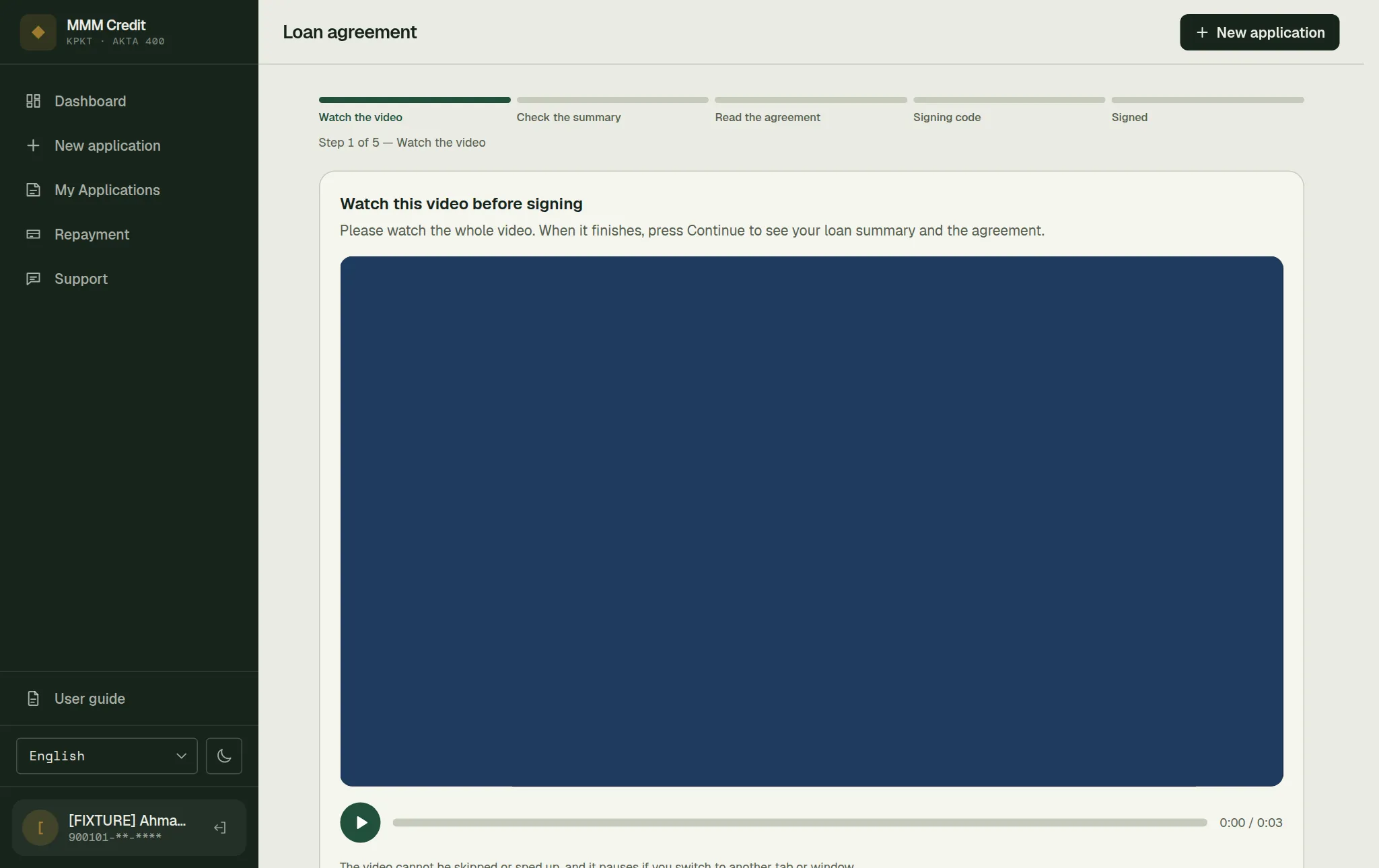
A bar across the top of the page shows all five steps and which one you are on — Watch the video, Check the summary, Read the agreement, Signing code, Signed — so you can always see what is left. You cannot jump ahead with it: each step opens only once the one before it is done.
Every step except the last also has a Back button at the bottom. It takes you to the step before it, and on the first step it takes you back to your account. Going back changes nothing you have already done: a video you have finished stays finished, and a summary you have confirmed stays confirmed — Back only puts an earlier screen in front of you again.
The page opens on Step 1 of 5 — Watch the video, headed Watch this video before signing. Press Play the video and watch it to the end.
The video cannot be skipped or sped up, and it pauses if you switch to another tab or window. Underneath, while you still have it to watch: If you leave the page, you will need to watch it again from the start. It is checked on our side as well as in the player, so there is nothing to be gained by hunting for a way round it. When it pauses, come back to the page and press play again — it carries on from where it stopped. If we publish a new version of the video before you have signed, you watch the new one.
When the video ends, the page says You have watched the video. Press Continue to open your loan summary and the agreement — the page does not move on by itself.
If you come back later, the page starts at step 1 again. But if you finished the video on an earlier visit, you do not have to sit through it twice: it says We have a record of you watching this video all the way through, so you can continue straight away, and Continue is ready. The video is still there if you want to watch any of it again.
If instead the page is headed Your agreement is not ready yet, there is no video to watch yet and nothing for you to do here — contact us if you have any questions, and our team will take it from there.
Section 04
Step 2 of 5 — check the summary
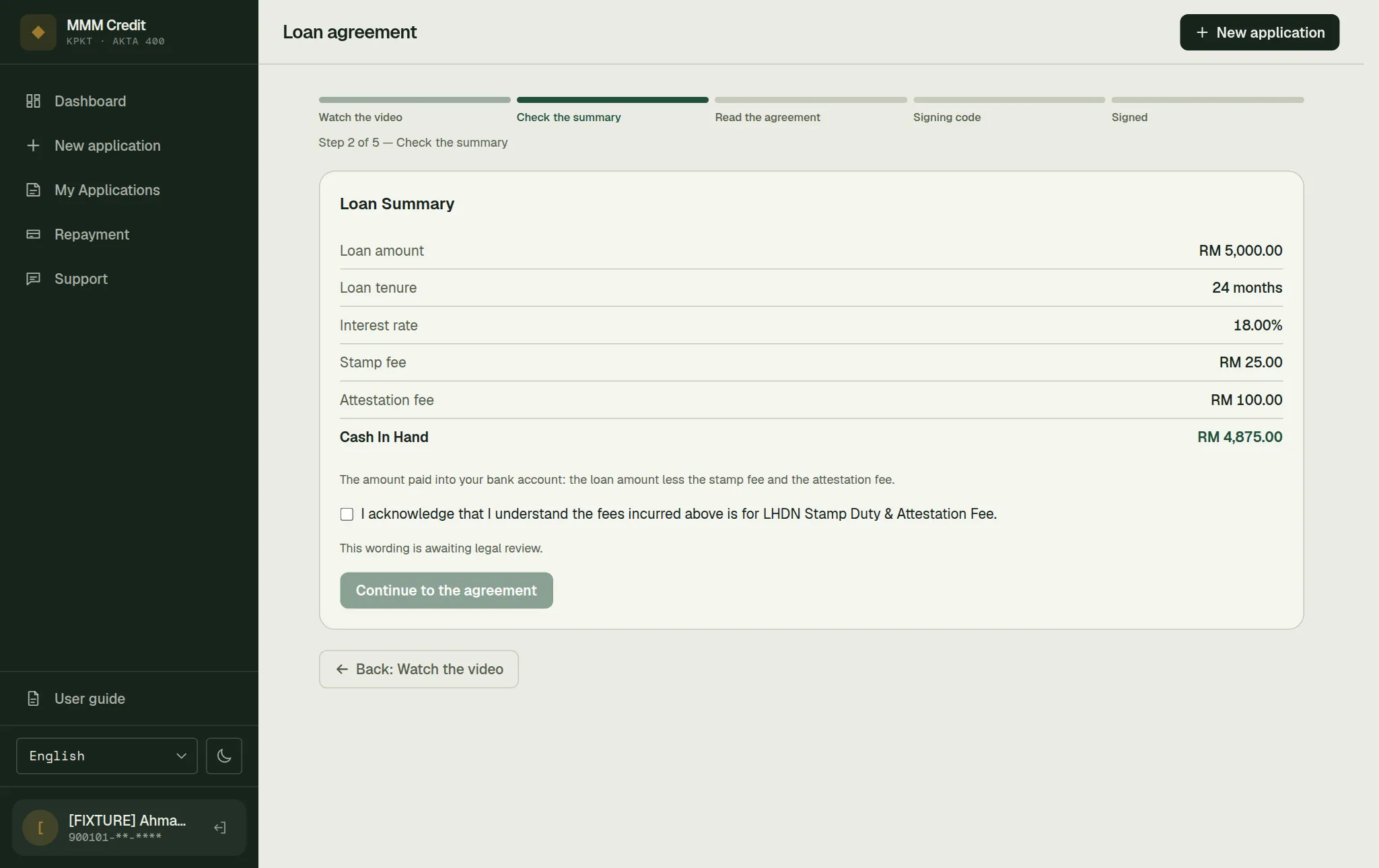
Next comes Step 2 of 5 — Check the summary: the loan amount, loan tenure and interest rate, the stamp fee and attestation fee, and your Cash In Hand — the amount paid into your bank account, which is the loan amount less those two fees. Read it, tick the box to confirm you understand the fees are for LHDN stamp duty and attestation, and press Continue to the agreement. A short version of the summary stays at the top of the page afterwards, with the date you confirmed it, so the figures are still in front of you while you read the agreement.
If the page says the fees have just been updated, read the summary again: it now shows the current figures, and you confirm those.
Two other things this step can say:
- "This wording is awaiting legal review." — the sentence you are ticking is not in its final wording yet. The figures above it are the real ones.
- "Your loan summary is not available right now. Please contact us — our staff need to check it before you can continue." — nothing has gone wrong with your application; a member of staff has to look at it before this step can continue.
Section 05
Step 3 of 5 — read the agreement
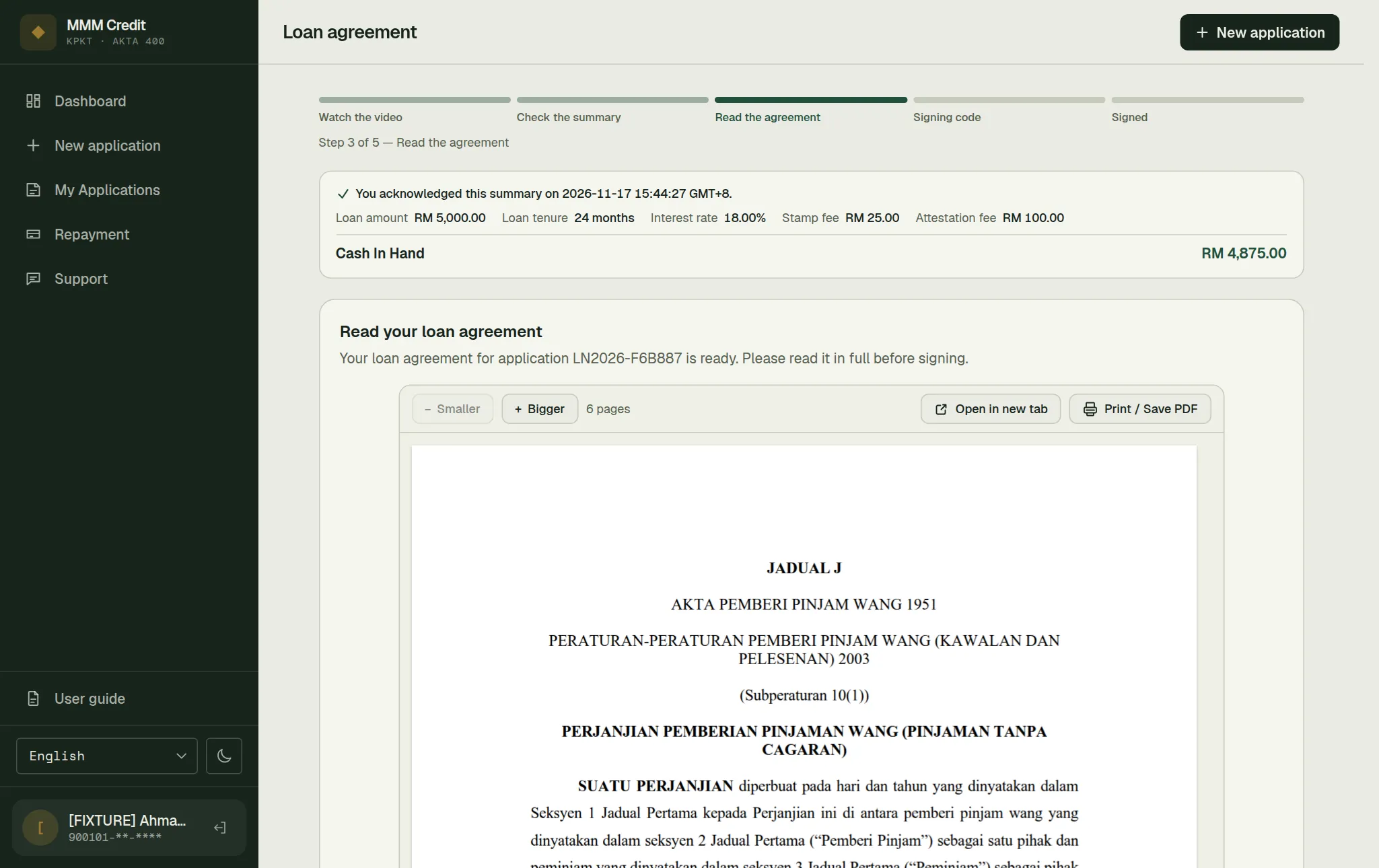
The agreement is shown on the page itself, under the summary — you do not have to open anything to read it. Scroll through all of it: the amount, the interest, every instalment and the total you will repay.
Use Bigger if the text is small on your screen; Print / Save PDF keeps a copy of exactly this agreement.
When you have read it, tick I have read the loan agreement and I agree to its terms., and then press Continue to the signing code. Ticking the box on its own does not move you on: the box says you have read the agreement, the button says you are finished with this step, and until you press it the agreement stays in front of you.
Section 06
Step 4 of 5 — your signing code
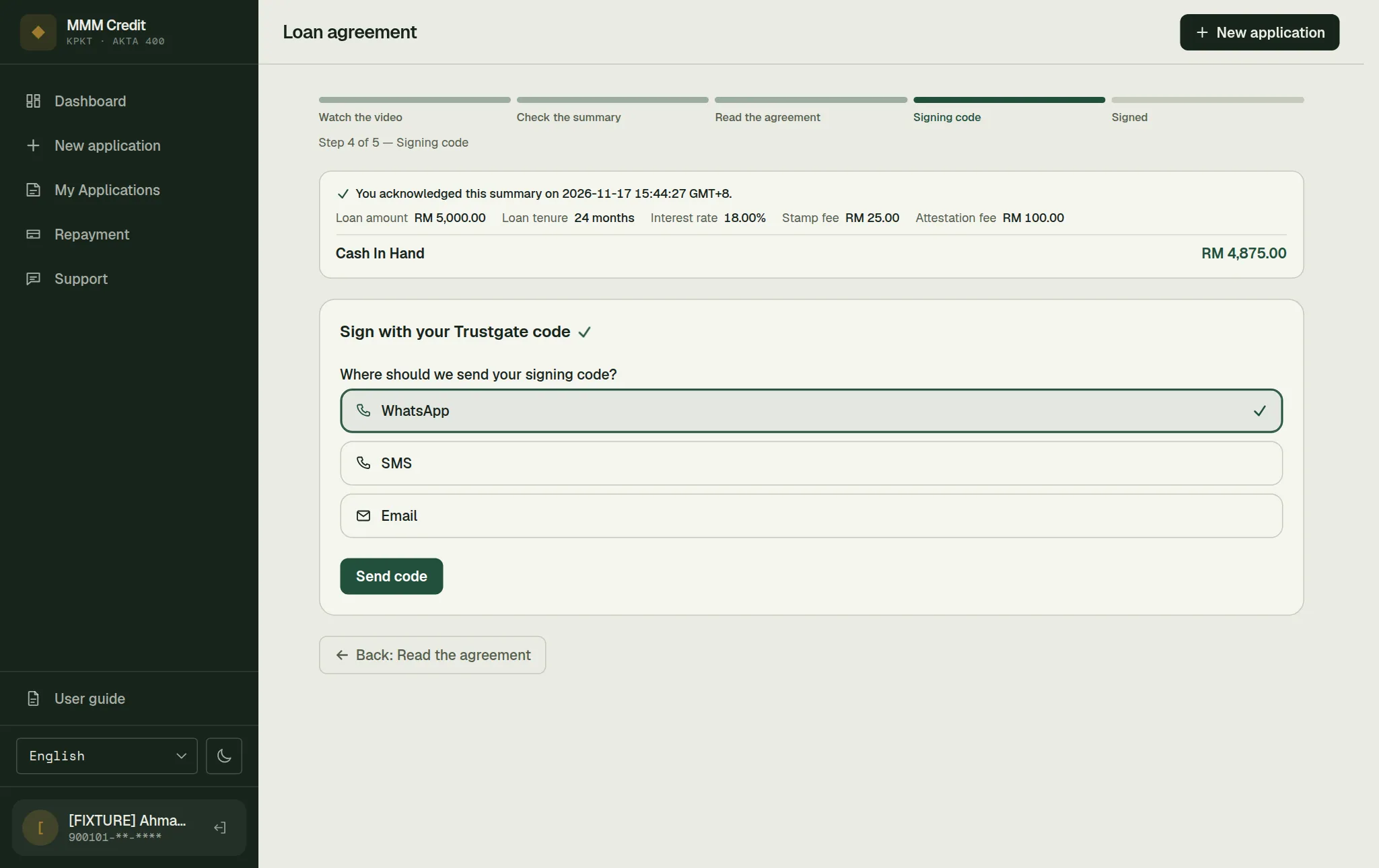
The agreement is not repeated on this step — you have read it, and this step is for the code. The short summary stays at the top of the page, and Back: Read the agreement opens the document again if you want another look before you sign.
Choose where the code should go — WhatsApp, SMS or Email — and press Send code. The code comes from MSC Trustgate, our signing partner, and entering it signs the agreement digitally with your own certificate. If it does not arrive or has expired, press Send a new code.
Type the code and press Sign the agreement. If the code was wrong or has expired, the page tells you; ask for a new code and try again.
Section 07
After you sign
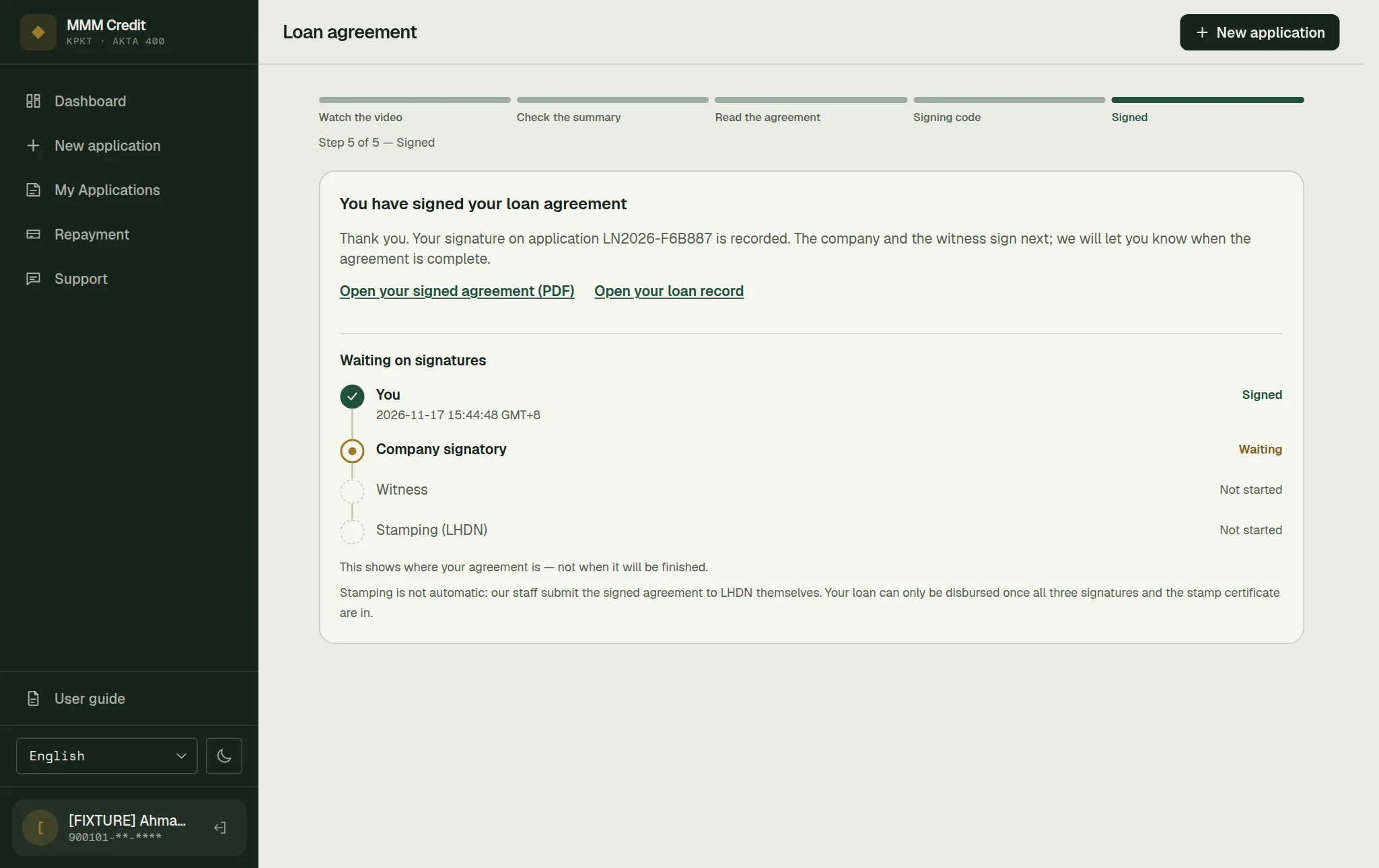
The page says You have signed your loan agreement, and Open your signed agreement (PDF) shows the copy with your signature on it. Open your loan record takes you to this loan's own page, where its documents are filed (chapter 3).
Yours is the first of three signatures. The company signs next, then a witness — the law requires a witnessed agreement. After that the agreement is submitted to LHDN for stamping, which is what lets it be used as evidence in court; the stamp certificate is then filed with your application documents, where you can open it yourself (chapter 3). The money is released only after all of that is done.
You can follow it without leaving this page: once your own signature is in, the four parties are listed in order — You, the company signatory, the witness and stamping — with the one it is waiting on marked. Your dashboard shows you the same thing. It tells you where the agreement has got to, not when it will be finished: we do not put a date on a step that has not happened. Stamping is submitted by our staff by hand, so it is not instant.
Still stuck?
Talk to us.
Use the Contact Us form. If you have an account, log in and open a ticket under Support in your account: our replies stay on the ticket.
Never put your password or a verification code in a message or a ticket. Our team will never ask you for it.