Contents
Chapter 10
Support
The loan agreement you sign is what governs your loan. This guide explains how to use the website; where the two ever differ, your signed agreement prevails.
Ask us a question and follow the conversation, all in one place.
Section 01
Opening a ticket
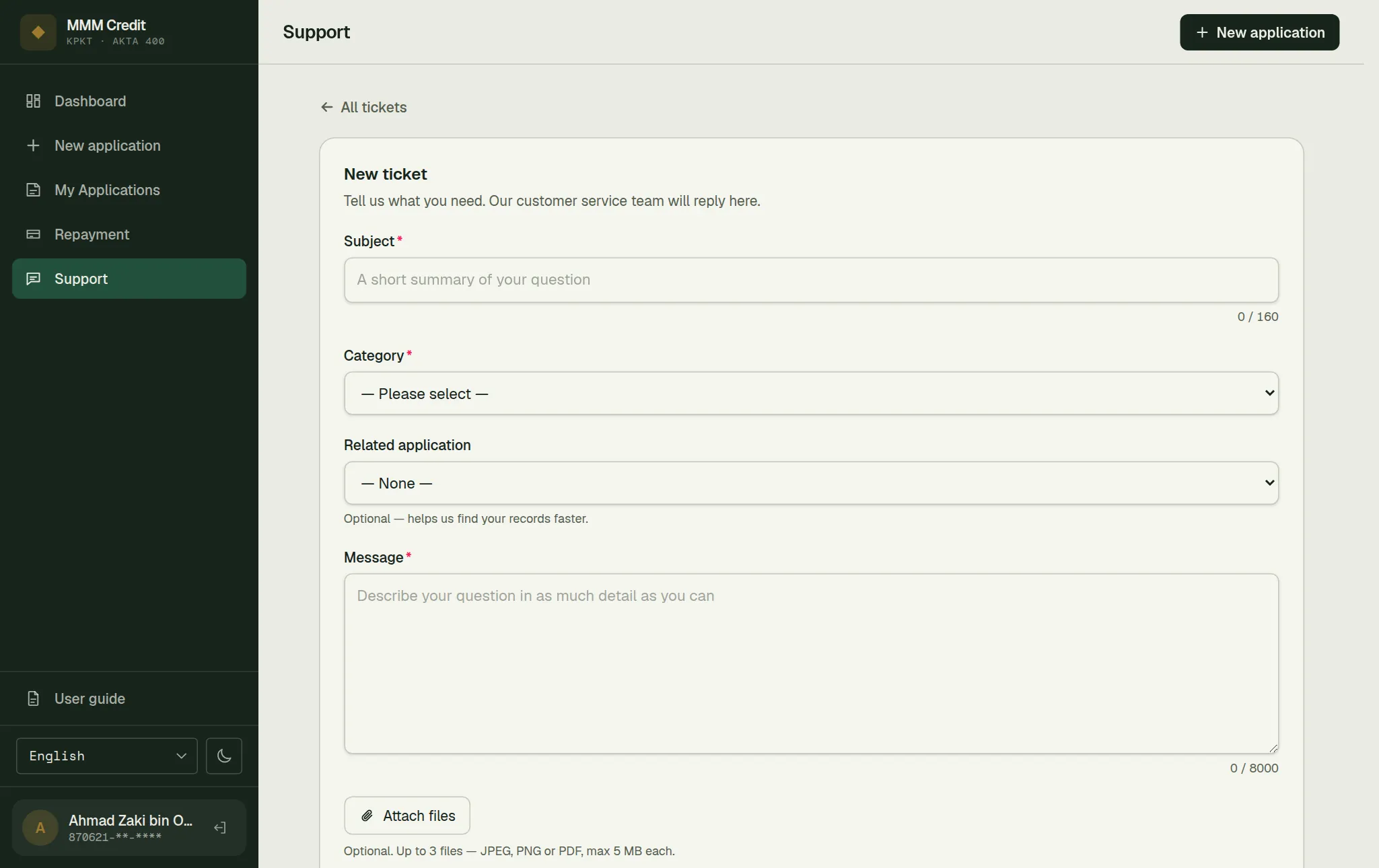
Start a ticket
press New ticket.
Say what it is about
fill in Subject, pick the Category that fits best, and write your Message. If it is about one of your applications, choose it under Related application — it is optional, and it helps us find your records faster.
Add files if you have them
Attach files takes up to three files (JPEG, PNG or PDF, up to 5 MB each), for example a payment receipt.
Send it
press Submit ticket.
Never put your password or a verification code in a ticket. The form says so, and it is the one thing our team will never ask you for.
Every ticket gets a reference number such as TK2026-ABC123. Quote it if you ever call us.
There is a limit on how many tickets you can have open at once. If you reach it, the form refuses with "You already have too many open tickets. Please continue the conversation in one of your existing tickets." — that is the way out of it: reply on a ticket you already have instead of opening another. Tickets that are Closed do not count, so the limit clears itself as conversations finish.
Section 02
Following the conversation
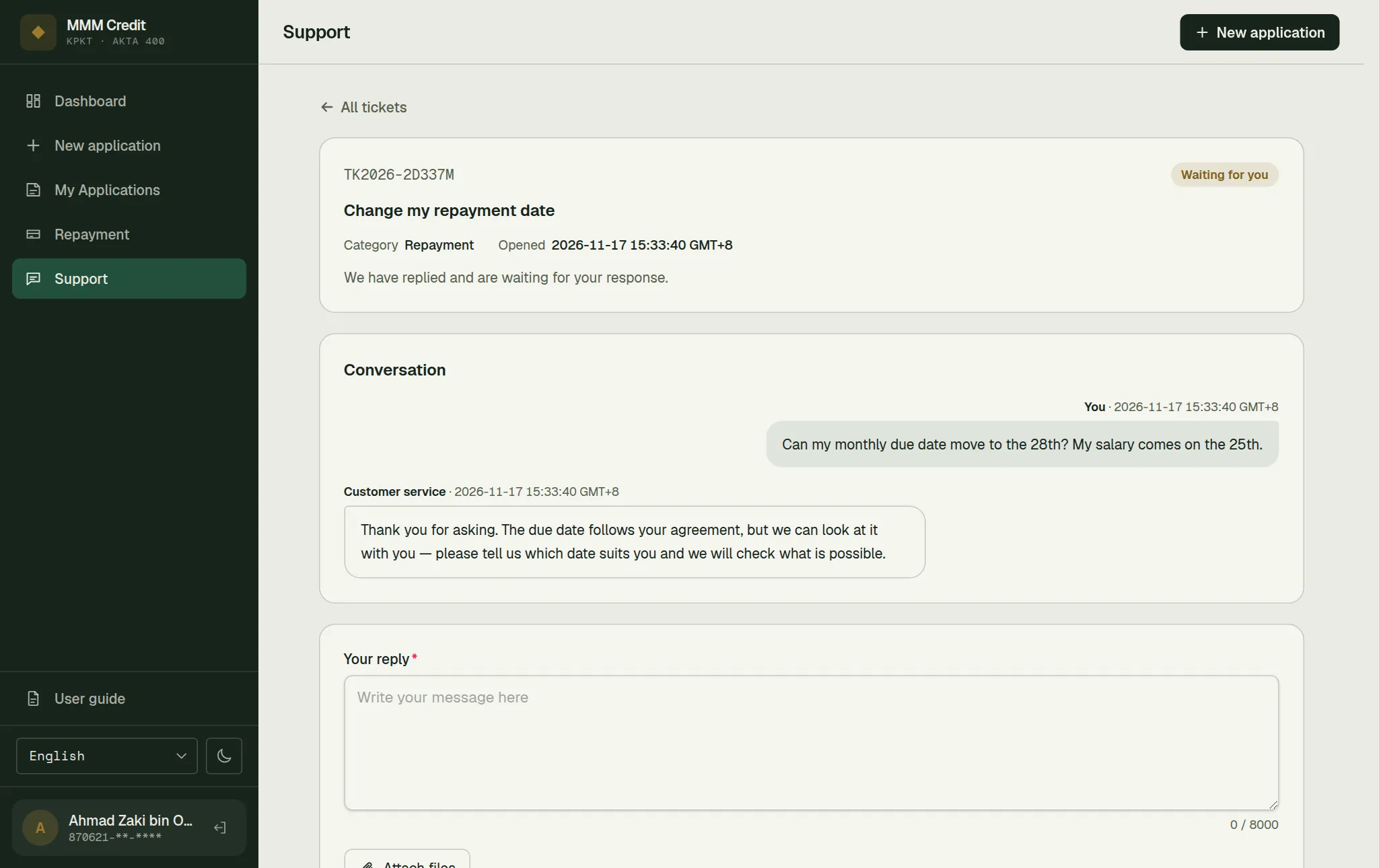
Our replies appear on the ticket, here in your account. If your email address has been verified, we also send you an email when we reply — it only says that there is a new reply and links back here; the reply itself is always on this page. Please reply here, not by email.
An address that has never been verified gets no such email, so if you are relying on the nudge, verify your email address in My account first. The reply is on the ticket either way.
Your own reply box takes attachments too, on the same terms as the first message: up to three JPEG, PNG or PDF files, 5 MB each. So a receipt or a payslip we ask for later goes on the conversation rather than into a separate email.
Replying to a ticket we marked Resolved reopens it, and the box tells you so before you send.
The ticket list shows your most recently updated tickets first. If you have more than fit on the page, Show more at the bottom adds the next batch — nothing is hidden, it is only not loaded yet.
| Status | Means |
|---|---|
| Open | Our team will look at it. |
| Waiting for you | We have replied and are waiting for your answer. |
| Resolved | We believe your question has been answered. If it has not, just reply — the ticket opens again. |
| Closed | This ticket is finished and can no longer be replied to. Open a new ticket if you need more help. |
Section 03
Rating a ticket
Once a ticket is Resolved or Closed, the ticket page asks How did we do? Pick 1 to 5 stars and, if you like, add a comment. You can rate a ticket only once, and the rating can't be changed afterwards. Rating does not reopen a resolved ticket — if your question isn't answered, reply instead.
Section 04
When a ticket closes by itself
A ticket closes automatically if it has been waiting for you for a while: either after we marked it Resolved, or while we were waiting for your answer. The ticket page says which. A few days before that happens we send you one email reminder with a link back to the ticket. A closed ticket can't be replied to; open a new ticket if you need more help. A ticket that is waiting for us never closes by itself.
Section 05
Without an account
If you used the Contact Us form on the website instead, you will not see that ticket here. The email we sent you contains a private link where you can read our replies and answer us. Keep that email to yourself — anyone with the link can read that conversation.
Still stuck?
Talk to us.
Use the Contact Us form. If you have an account, log in and open a ticket under Support in your account: our replies stay on the ticket.
Never put your password or a verification code in a message or a ticket. Our team will never ask you for it.