Contents
Chapter 07
Identity check
The loan agreement you sign is what governs your loan. This guide explains how to use the website; where the two ever differ, your signed agreement prevails.
Every loan application includes a check that you are who you say you are. For this step we may ask you for a photo of your face and a verification code. It takes a few minutes.
Section 01
Do the identity check
Have these ready
- A phone with a camera
- Access to the phone number or email on your account
Start
on your dashboard, press Start now in the Identity check needed panel.
Take the photo of your face
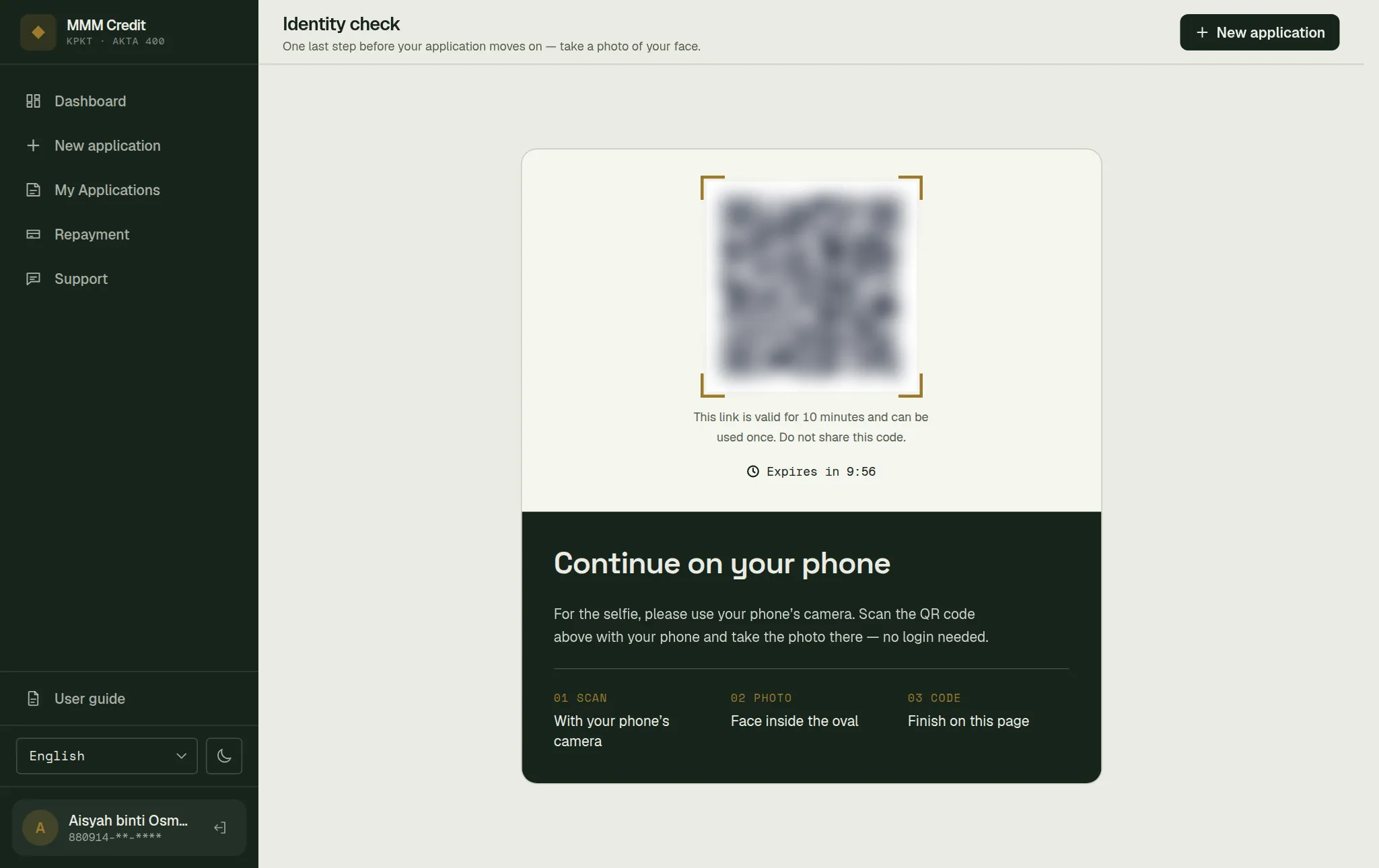
on a phone the camera opens; on a computer, scan the QR code with your phone and take it there. See Step 1 below.
Enter the code
choose SMS or Email, press Send code and type the 6 digits. See Step 2 below.
Wait for the result
a window shows the check as it runs, then the result.
Section 02
When you are asked
This page only matters once your application reaches the identity check step. Your dashboard then says "Waiting for you: identity check", with an Identity check needed panel and a Start now button. Nothing is ever asked of you by SMS or email alone — if the dashboard does not show it, you have nothing to do.
If you open the page at any other time, it says No identity check needed and offers Back to dashboard.
Section 03
Step 1 — A photo of your face
Find somewhere with good light and take off any hat or sunglasses.
On a phone or tablet: the page explains the three steps ahead — Selfie, Code and Result — and has a Start the selfie button. Press it, and the camera opens full screen:
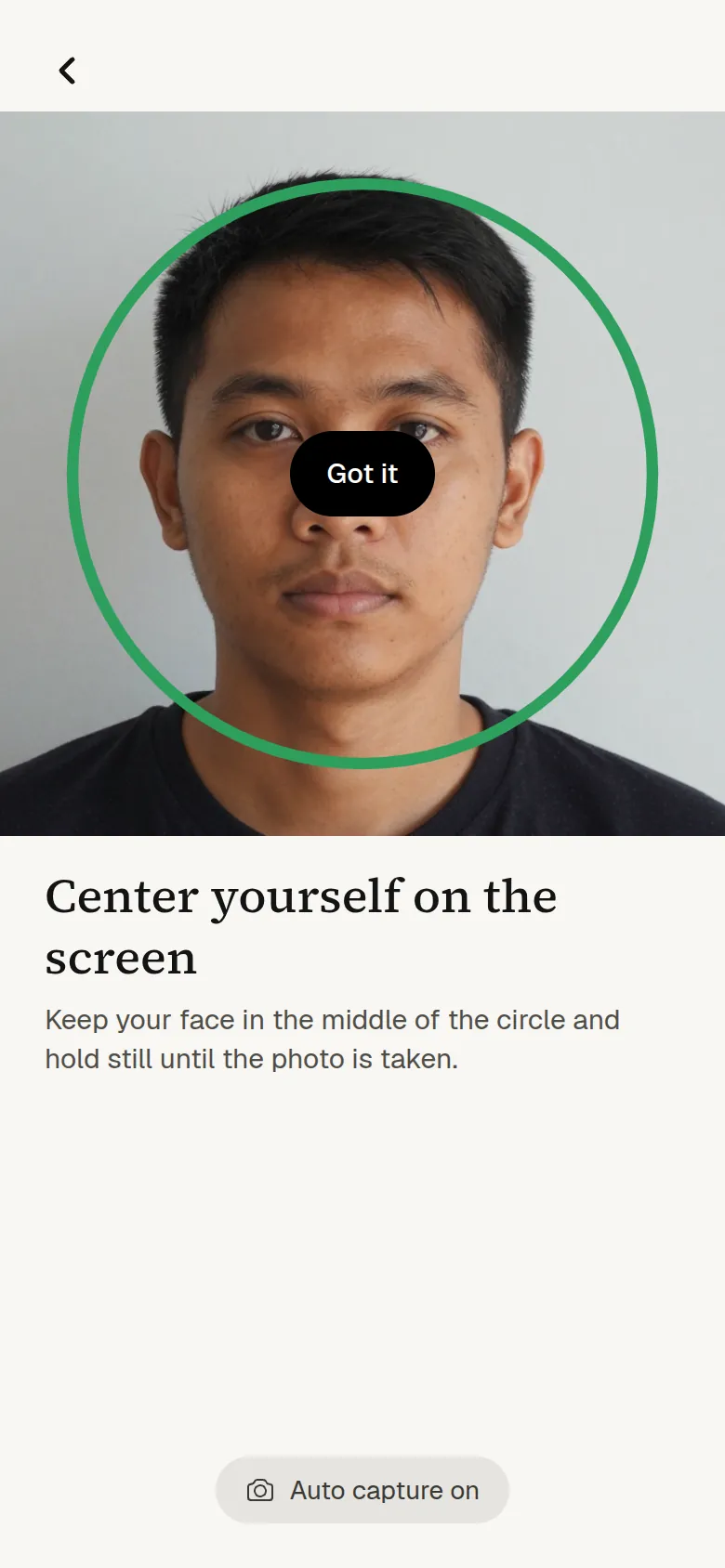
- Put your face in the circle and hold still. You are then asked to turn your head slightly to the left and to the right, in the order shown on the screen; the marks around the circle fill as you turn. Everything is captured automatically — there is no button to press — and it takes about 10 seconds. Short hints on the screen, such as Move closer or Hold still, tell you what to adjust.
- Only the photo of you facing forward is sent. The head turns are not photographed.
- Once it has been sent, the window closes by itself and you carry on with step 2 on the same page.
If the phone cannot follow your face, you see The face check can't run on this phone instead, with a list under What to try — open the page in the latest Chrome (Android) or Safari (iPhone) rather than inside another app, turn off battery saver, check your connection — and a Try again button. If none of that helps, use another phone: open the identity check on a computer and scan its QR code with that phone. If the camera itself will not start, the screen says Can't open the camera; close any other app that is using it and try again.
On a desktop or laptop computer: the page shows a QR code instead — normally it does this even if your computer has a camera, because the photo of your face is meant to come from a phone. Scan the code with your phone and take the photo there; you do not need to log in on the phone. The code is valid for 10 minutes and can be used once; do not share it.
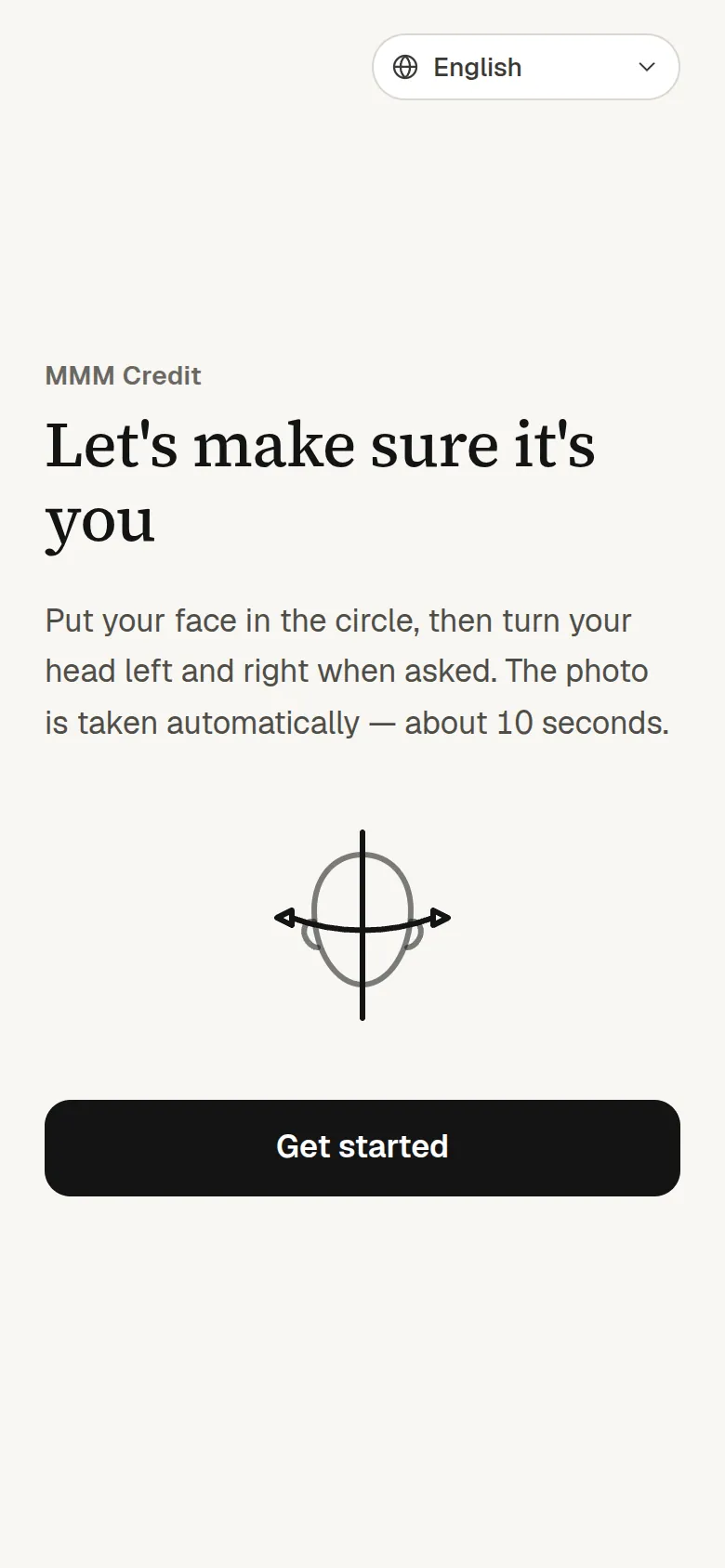
On the phone you may first be asked "Did you switch from another device?" — that is expected, because you started on your computer; press Continue. The page is headed Let's make sure it's you; press Get started and follow the same head turn as above. When the phone says Photo submitted, go back to your computer and carry on with step 2 there. If the phone says This link has expired, press Make a new code on your computer and scan the new one.
Our staff can allow computer cameras for this step. Where they have, a computer with a working camera offers Open Camera instead of the QR code: keep your face inside the oval, press Take Photo, then Submit for verification. A computer without a camera still gets the QR code. Before a photo from a computer camera is sent, the site looks at it and may tell you it is too dark, blurry, that no face was found, that more than one person is in the frame, or that you are too far away or not fully in the frame. Retake it if you can. If you are sure the photo is fine, press Submit this photo anyway. This check only helps you avoid a poor photo — it is not the identity check itself.
Section 04
Step 2 — A verification code
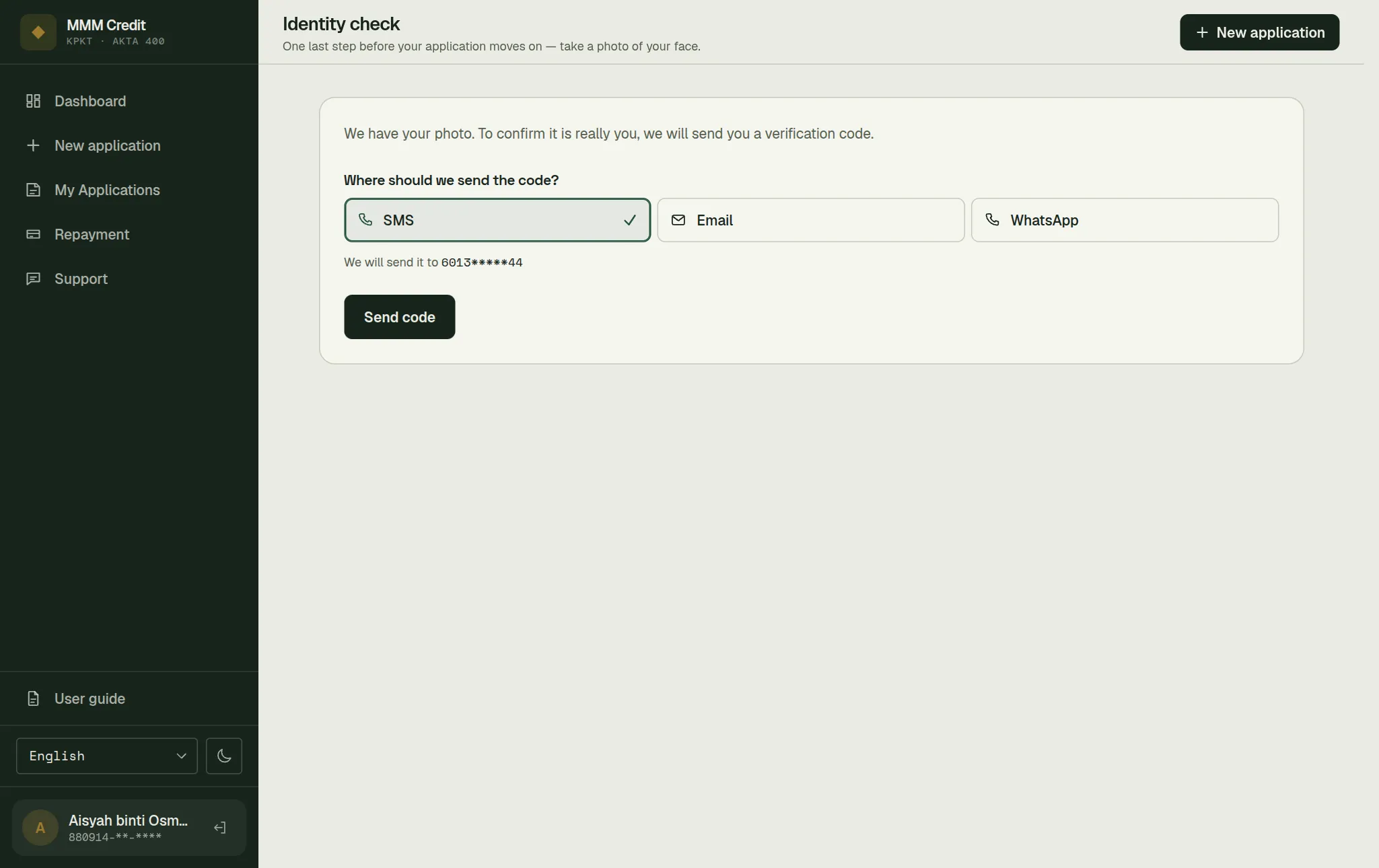
To confirm it is really you, we send you a code. Under Where should we send the code? choose SMS or Email and press Send code. Email can only be chosen if your email address is verified; WhatsApp is shown as Coming soon.
The code goes only to the phone number or email address already on your account — the screen shows it partly hidden, so you can check it is yours. It is always entered on the same screen where you started, even if you took the photo on your phone.
Type the 6 digits. The code is checked as soon as all six are in; there is no button to press. To switch to the other channel, press Use another way. If you ask for codes too many times, the button tells you how long to wait.
Once the code is accepted, a Checking your identity window covers the page while we check. This can take up to a minute; the window shows what is happening as it goes. It cannot be closed — do not close or reload the page until the result appears.
If your MyKad photos cannot be read
Sometimes the photos of your MyKad from your application cannot be used for the check. A Retake your IC photos panel then appears on the same screen. Take the front and back again with your camera, press Use these photos, and then ask for a new code.
Section 05
The result
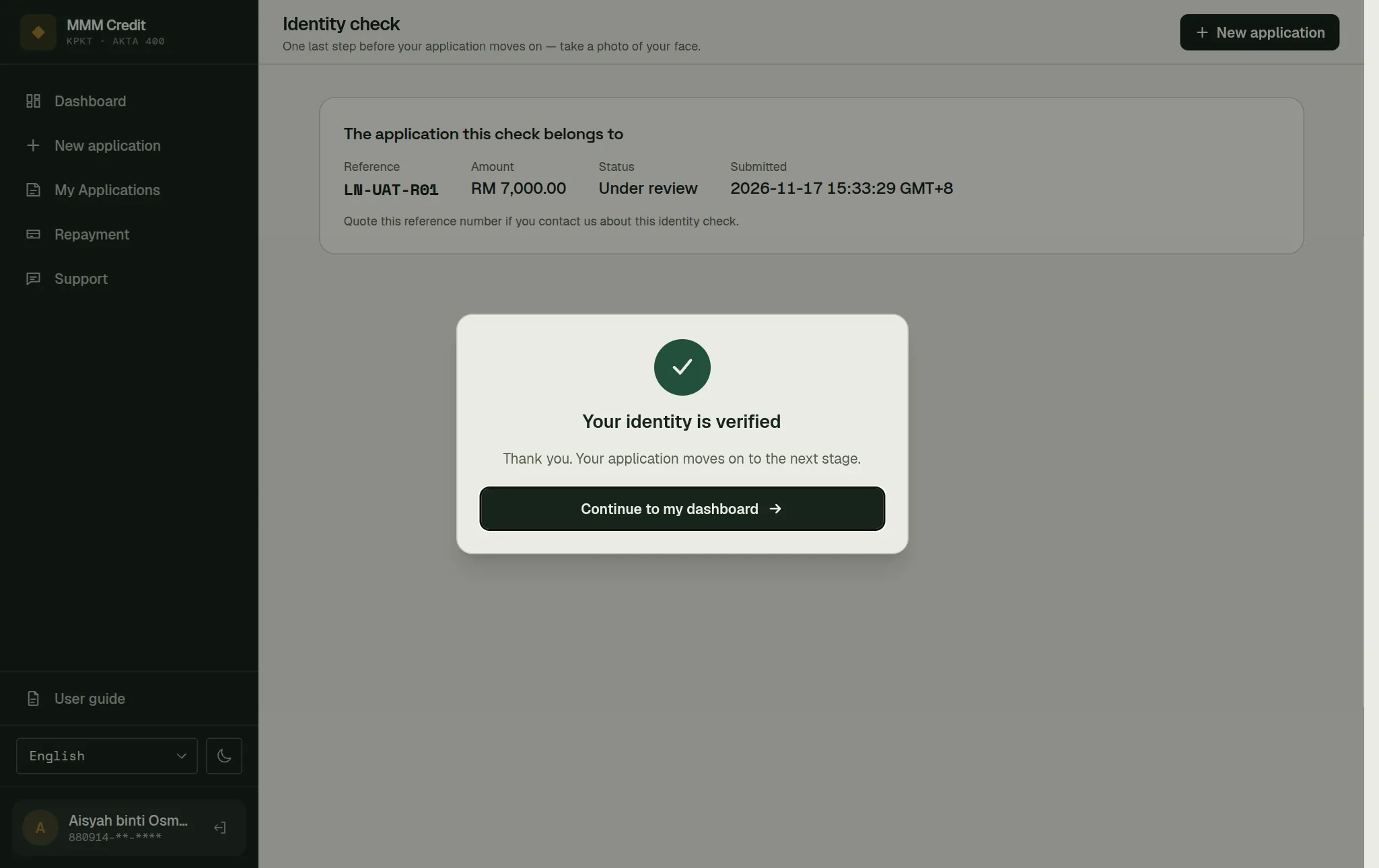
- Your identity is verified — your application moves on.
- We could not verify your identity — our team will review it by hand and contact you if anything further is needed.
- We have received your photo — the check is still in progress. Follow it on your dashboard.
The result appears in the same window and stays there until you press Continue to my dashboard.
If you see a message that your identity has already been verified with our certification provider, there is nothing more for you to do; our team will take it from there.
The photo of your face is kept with your application records, as set out in the identity verification consent you gave when you applied.
Still stuck?
Talk to us.
Use the Contact Us form. If you have an account, log in and open a ticket under Support in your account: our replies stay on the ticket.
Never put your password or a verification code in a message or a ticket. Our team will never ask you for it.