Contents
Chapter 05
My account
The loan agreement you sign is what governs your loan. This guide explains how to use the website; where the two ever differ, your signed agreement prevails.
To open My account, press your name at the bottom of the menu. There is no menu entry for it. The page used to be two pages, Profile and Security; the old Security address still works and brings you here.
The page is a column of cards, in this order:
- Personal details: your name and IC number, which are locked.
- Contact details: your phone number and email address, which you can change yourself.
- Change password: see chapter 6.
- Passkeys: sign in with your fingerprint, face or screen lock instead of your password. This card only appears when we have turned passkey sign-in on. See chapter 6.
- Recent sign-ins: where your account has been signed in, and a button to sign out every other device. See chapter 6.
The locked fields carry a small padlock so you can see at a glance what you can and cannot change here.
Section 01
What you cannot change here, and why
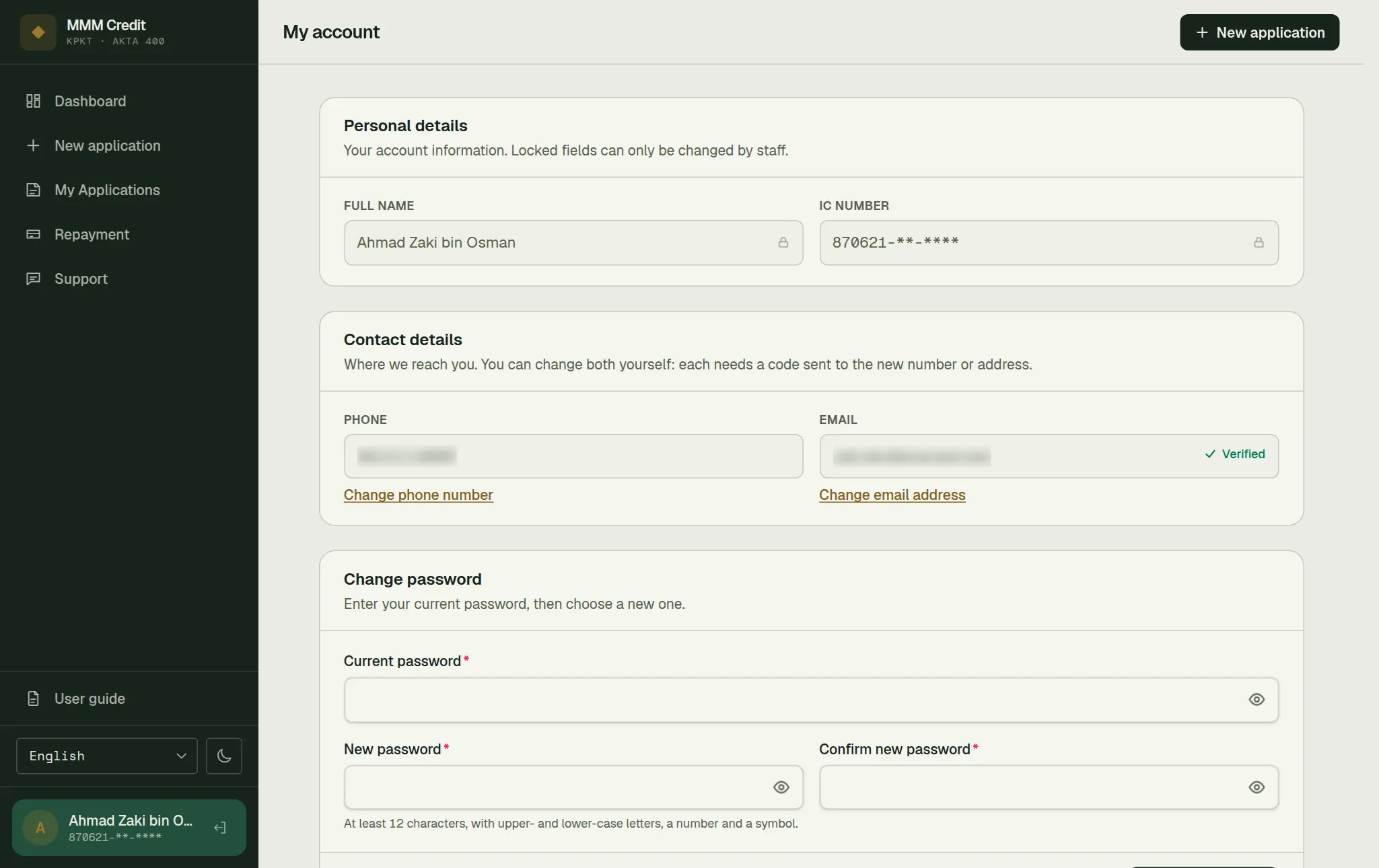
Full name and IC number are fixed when you register. They identify you on every application and every agreement, so changing them is not a self-service action. Open a ticket under Support if either is genuinely wrong.
Your IC number is shown partly hidden. You do not need to check it on this screen, and one fewer place where a full IC number sits on screen is one fewer chance of somebody reading it over your shoulder.
Section 02
Phone number — you can change it, with safeguards
Press Change phone number under your phone.
Ask for a code
type your new number and your current password, and press Send code.
Get the code on the new phone
we send it to the new number. If you hold a signing certificate, the code comes from MSC Trustgate and you can choose SMS or WhatsApp: your certificate is moved to the new number at the same time.
Confirm
type the code and press Change number.
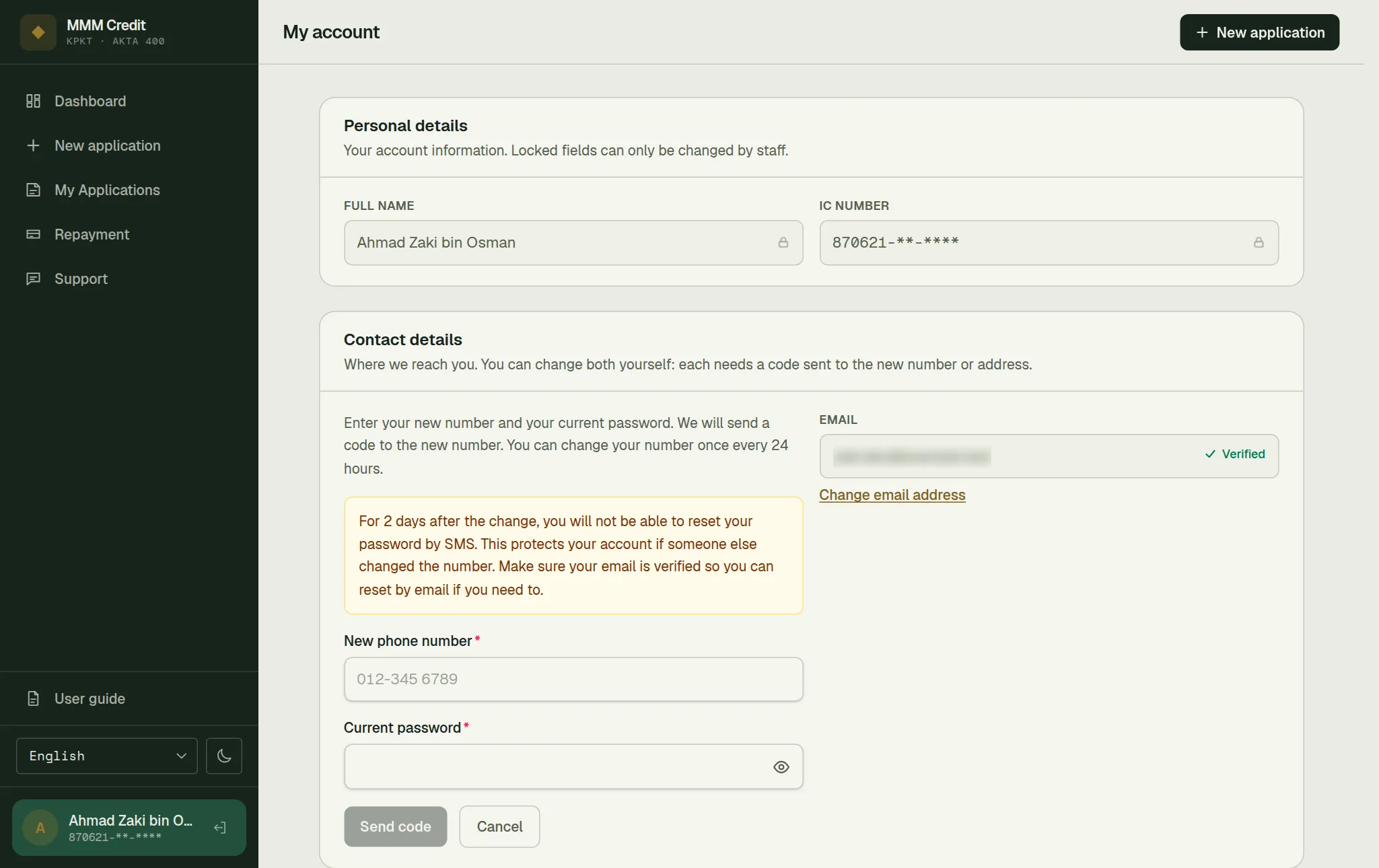
Why it asks for so much: your phone number is where password-reset codes go. Whoever controls it can get back into your account. So:
- Your password is needed, so knowing your IC number is not enough.
- We tell your old number and your email that the number was changed. If you did not do it, contact us immediately.
- You can normally change it once a day. The page tells you when you can change it again.
- Your passkeys are removed when the number changes. Sign in with your password and add them again (chapter 6).
- For two days after the change (the usual setting), you cannot reset your password by SMS. Reset by email still works. If someone else changed your number, this gives you time to get your account back before they can use the new number to reset your password. Make sure your email is verified.
Every other device you were signed in on is signed out. The device you made the change on stays signed in.
If you no longer know your password, or have lost the phone and have no verified email, open a ticket under Support: our staff can change the number after confirming who you are.
If our staff changed your number and you hold a signing certificate, your dashboard, this page and the signing page show Your signing phone number is not updated yet. Press Update signing number, choose SMS or WhatsApp, and type the code MSC Trustgate sends to your new number. Until you do, codes for signing your loan agreement go to your old number.
Section 03
Email address
Press Change email address (or Verify now, if you have not verified one yet).
Ask for a code
type the address and press Send verification code.
Open your email
we send a 6-digit code to that address. It is valid for ten minutes.
Confirm
type the code in and press Confirm.
Your account email does not change until the code is confirmed. If you type an address wrong and never confirm it, nothing has happened — your old address is untouched. This is why we ask for a code instead of simply saving what you typed: an email address is only useful to you if you can actually receive mail at it, and a typo would silently send messages about your account to a stranger.
A Verified badge appears next to the address once it is confirmed.
Changing your email address to a new one means verifying the new one. The proof is about the address, not about you.
You can also tick the optional newsletter box. It has no effect on your loan or your application — emails about your account and your loan are sent either way, and you can unsubscribe at any time.
If you hold a signing certificate, there is a second step. Your certificate at MSC Trustgate keeps its own copy of your email, and codes for signing your loan agreement are sent there. After our code, press Send code from MSC Trustgate: they send a different code, from MSC Trustgate, to your new address. Type that one into the box labelled Code from MSC Trustgate (signing). You can do it later: until you do, your dashboard and this page say Your signing email is not updated yet, and signing codes still go to the old address. Your new email is already saved with us either way.
Section 04
Most recent address
Shown read-only, taken from your latest application, with a note saying you can update it on your next application.
Addresses are recorded per application rather than kept as one editable field on your profile. Each application — and each agreement — records the address you gave at that time, which is what makes it evidence. If you have never applied, this line does not appear.
Still stuck?
Talk to us.
Use the Contact Us form. If you have an account, log in and open a ticket under Support in your account: our replies stay on the ticket.
Never put your password or a verification code in a message or a ticket. Our team will never ask you for it.