Contents
Chapter 06
Password
The loan agreement you sign is what governs your loan. This guide explains how to use the website; where the two ever differ, your signed agreement prevails.
Your password is changed on My account (press your name at the bottom of the menu), in the Change password card. This used to be a separate Security page; its old address still brings you to that card.
Section 01
Changing your password
Current password
the one you use now.
New password
type it in New password, and again in Confirm new password.
Save it
press Update password.
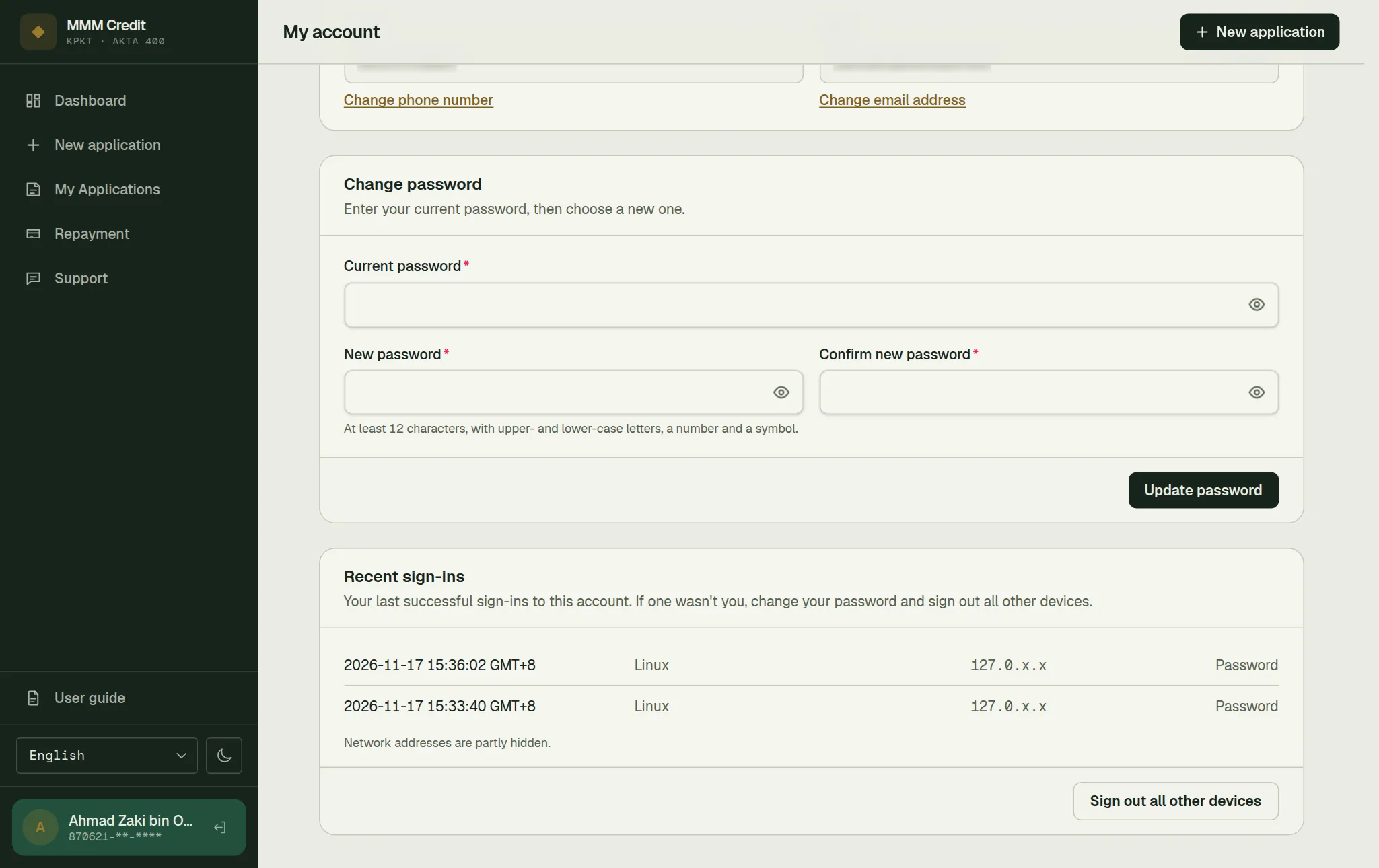
The rules your new password must satisfy are shown under the field. They are set by us and can change, so read what is on screen rather than relying on what you remember.
Why we ask for your current password
Being logged in is not, on its own, enough to change a password.
Think of a phone left unlocked on a table, or a browser still signed in on a shared computer. Without this check, whoever picked it up could set a new password and lock you out of your own account for good. Asking for the current password means they would need something you have not left lying around.
If you cannot remember your current password, log out and use Forgot password? on the login page instead — see chapter 1.
Section 02
What happens after you change it
Every other device signed in as you is signed out. If you were signed in on your phone and your laptop, and you change the password on the laptop, the phone will ask you to log in again.
The device you made the change on stays signed in — logging you out of the very tab you were using would be a strange way to reward good security housekeeping.
The same happens after a password reset, and after our staff change your phone number or reset your password. In every one of those cases the credentials to your account have changed, so old sessions should not survive.
Section 03
Passkeys
A passkey lets you sign in with your fingerprint, your face or your device's screen lock, instead of typing your IC number and password. It is a second, quicker way in: your password keeps working, and you can always sign in with it. The Passkeys card on My account, and the Sign in with a passkey button on the login page, only appear when we have turned passkey sign-in on.
Adding one. On My account, in the Passkeys card, press Add a passkey, type your current password, optionally give it a name (for example "My phone"), and follow your device's prompt. We ask for your password every time you add a passkey, even if you have just signed in — for the same reason as changing your password (see above).
Signing in with one. On the login page, press Sign in with a passkey and follow your device's prompt. You do not type your IC number: your device offers the passkey it holds for us.
Renaming and removing. Each passkey in the card has Rename and Remove. Removing one does not need your password, because it only takes a way in away — your password and your other passkeys keep working.
A passkey only signs you in. It never replaces your password when you change your password or phone number, or add another passkey.
When your passkeys are removed. All your passkeys are deleted when you reset a forgotten password, when you change your phone number yourself, and when our staff change your phone number or reset your password for you. Those are the moments someone may have had access to your account, and a passkey they added would otherwise still let them in. Changing your password while you are signed in keeps your passkeys. After a removal, sign in with your password and add your passkeys again with Add a passkey.
Section 04
Recent sign-ins
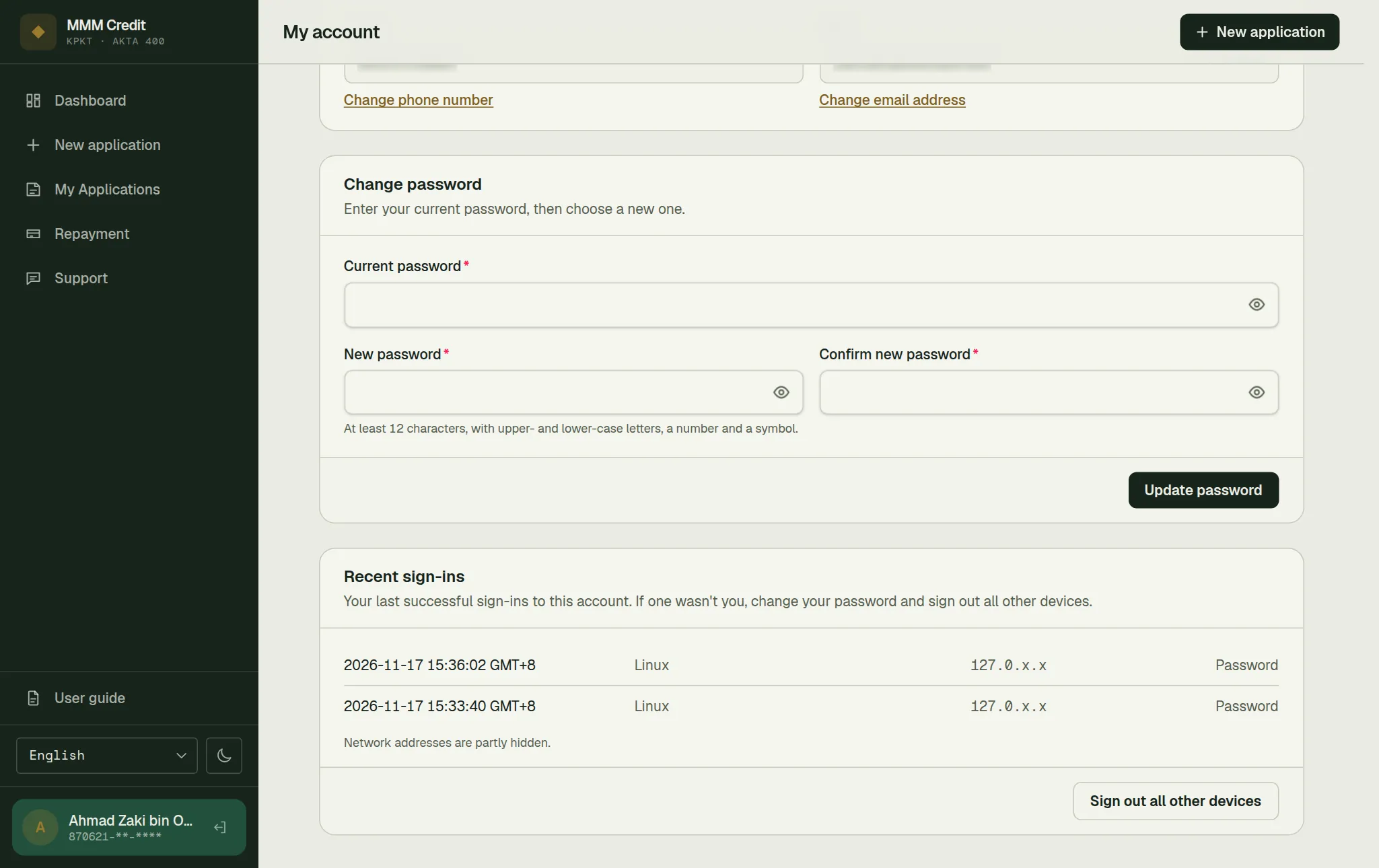
On My account, below the Change password card, is a list of the last few times someone signed in to your account successfully: when, on what kind of device (for example "Chrome on Windows"), from which network, and how (with your password or a passkey).
- The network address is partly hidden (for example
203.106.x.x). It is enough to tell "that was me at home" from "I have never used that network", without showing the full address. - Attempts that failed are not listed. Anyone who knows an IC number can type a wrong password, so a list of failures would only alarm you without telling you anything.
- If a sign-in on the list was not you, change your password straight away, then use Sign out all other devices.
Section 05
Sign out all other devices
Press Sign out all other devices at the bottom of the Recent sign-ins card and confirm. Every other phone, tablet or computer signed in as you is signed out at once and will have to log in again. The device you pressed it on stays signed in.
Your password does not change. If you think someone else knows it, change the password as well — signing them out only lasts until they log in again.
Section 06
"Your password no longer meets our security requirements"
If we tighten the password rules, an existing password can end up below the new standard.
You will see a one-off notice on your dashboard after logging in. It can be dismissed and it does not block anything — your password still works. It is a nudge, not a lock-out. When you have a minute, press the link in the notice (it opens the Change password card) and set a new one.
The notice appears on the dashboard rather than on the login page, because a message shown at the moment the login page disappears is a message nobody reads.
Section 07
Good habits
- Do not reuse the password you use for your email or your online banking.
- We will never ask for your password — not by phone, not by email, not by SMS. Anyone who does is not us.
- On a shared or public computer, always Log out when you finish. Logging out also clears any half-finished application draft from that computer, so the next person cannot see what you were filling in.
Still stuck?
Talk to us.
Use the Contact Us form. If you have an account, log in and open a ticket under Support in your account: our replies stay on the ticket.
Never put your password or a verification code in a message or a ticket. Our team will never ask you for it.