Contents
Chapter 08
Repayment
The loan agreement you sign is what governs your loan. This guide explains how to use the website; where the two ever differ, your signed agreement prevails.
Everything about the loans you are repaying: what is left to pay, what is due next, the full schedule, and how to pay.
Before your loan is disbursed this page says "No active loan" — that is correct, not a fault. The schedule appears once the money has been released.
Section 01
Your loan at a glance
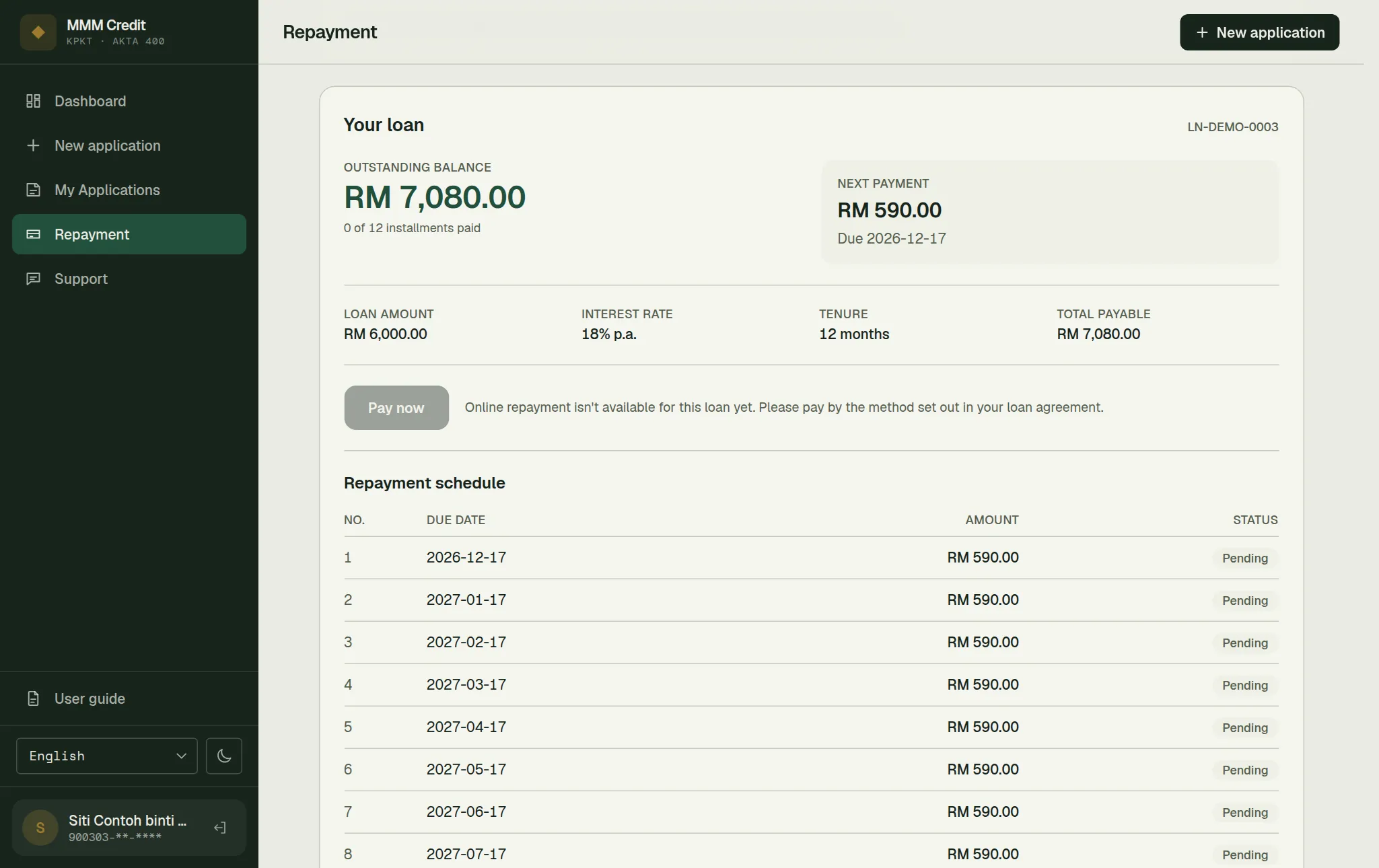
The card at the top shows your loan number and:
- Outstanding balance — what is still to be repaid, and how many instalments you have completed.
- Next payment — the amount and the date it is due. When every instalment is paid, this says All installments paid instead.
- Loan amount, interest rate, tenure and total payable — the terms of your loan as agreed.
Every figure on this page is calculated by us from your agreed schedule. Nothing here is estimated in your browser, so what you see is what our records say.
Section 02
If you have more than one loan
Every loan you are still repaying is shown here — none is hidden. When you have more than one:
- A summary at the top shows how many loans you have, the total outstanding across all of them, and your next payment. If two or more loans fall due on the same day, that figure is their combined amount, and the line underneath says how many loans it covers.
- Below it, each loan has its own card, the one due soonest first. A loan that is past due is marked Overdue next to its name.
- Each card has its own schedule, headed Repayment schedule ({count} installments). The first one is open; tap that heading on any other card to open it.
Each loan is repaid separately, by its own schedule — paying one does not reduce another.
Section 03
The repayment schedule
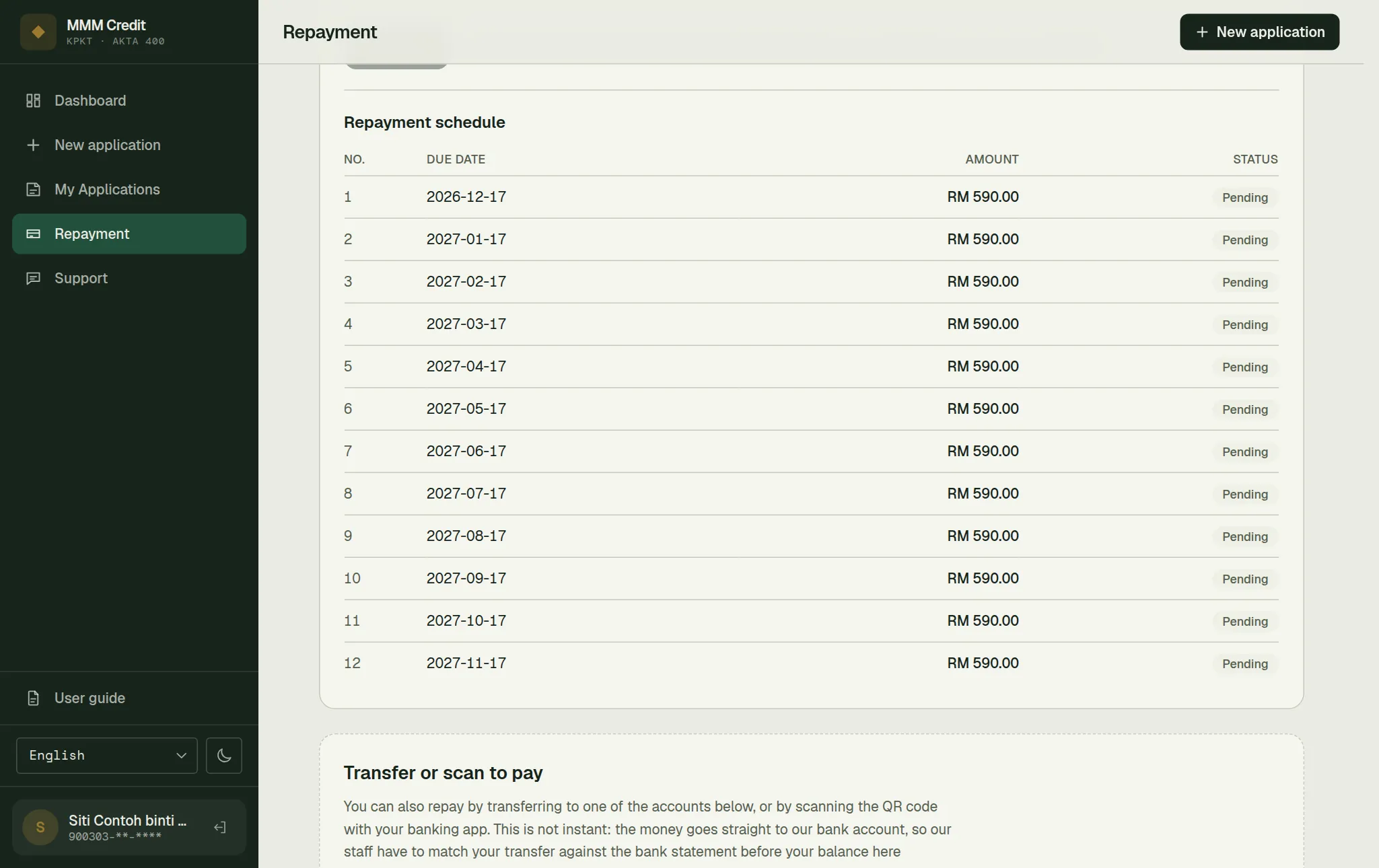
One row per instalment: number, due date, amount and status.
The amount column is what is still due on that instalment, not what it was originally. It is the instalment plus any late charge we have not waived, less everything already received against it — so an instalment you have settled shows zero, and one that is part paid shows only the remainder. Late charges never get a row of their own; they are inside that figure.
| Status | What it means |
|---|---|
| Pending | Not yet due, or due but not yet received. |
| Partial | Part of this instalment has been received. |
| Paid | Settled in full. |
| Overdue | Past its due date and not settled. Open a ticket under Support. |
| Waived | We have waived this instalment. |
A payment you have just made may take a little time to appear here — payments are matched against your account by our staff, not instantly by the website. If a payment you made some days ago is still not showing, open a ticket under Support with the date and the amount.
Section 04
Pay by bank transfer or QR
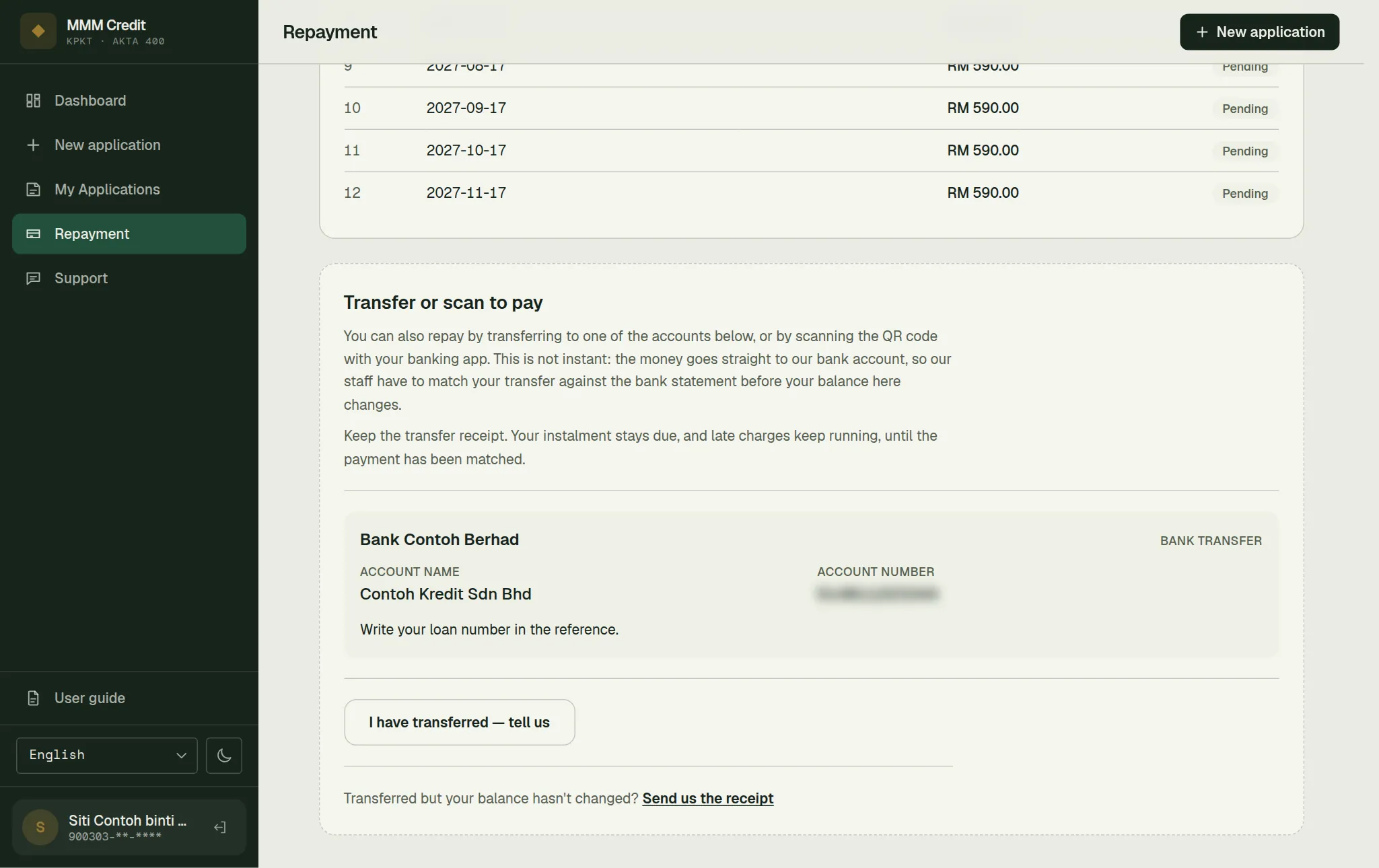
Under Transfer or scan to pay the page lists the company's own accounts: a Bank transfer account (bank, Account name and Account number) and, where we offer one, a Scan to pay QR code. This is not instant — the money goes straight into our bank account, so our staff match your transfer against the bank statement before your balance changes.
Have these ready
- Your banking app
- The transfer receipt (a screenshot or PDF)
Transfer
transfer to one of the accounts shown, or scan the QR code with your banking app.
Keep the receipt
save the screenshot or PDF your banking app gives you.
Tell us
press I have transferred — tell us. Fill in Which account you paid into, Amount transferred and Date of the transfer exactly as your bank shows them (with more than one loan, also Which loan), attach the Transfer receipt, and press Send to our staff.
Wait for the match
your transfer is listed on the page until our staff have matched it against the bank statement. Then it is applied to your instalment.
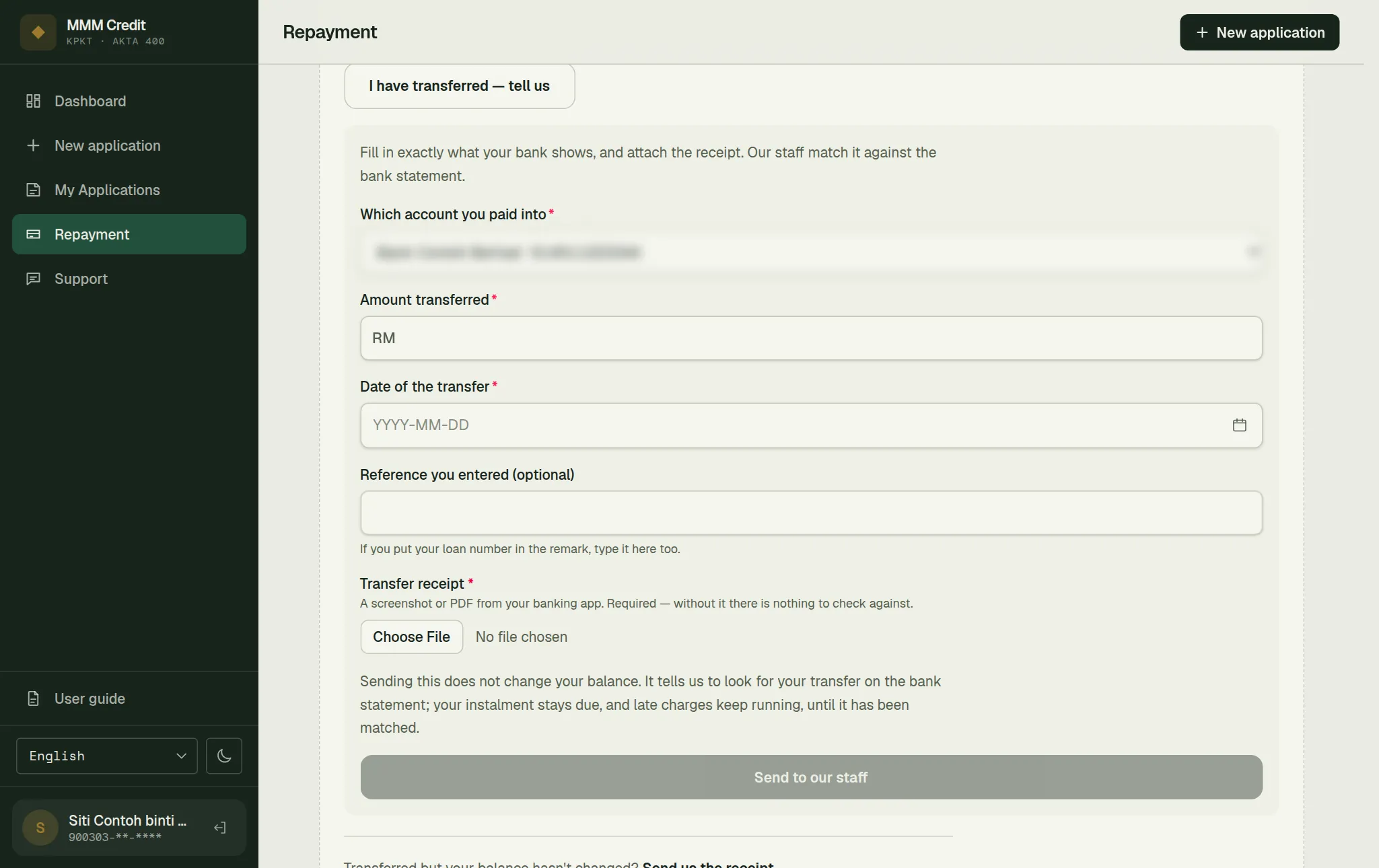
Sending the form does not pay anything.
It tells us to look for your transfer on the bank statement. Your instalment stays due, and late charges keep running, until it has been matched.
If our staff cannot match a transfer to the bank statement, the page says so, and it cannot be sent again. If you believe that is wrong, open a ticket under Support with the receipt.
Section 05
Pay online
Online payment is not available yet. The Pay now button is shown greyed out with the note "Online repayment isn't available for this loan yet. Please pay by the method set out in your loan agreement."
It is left visible on purpose. Removing it would leave you wondering whether online payment exists and you simply cannot find it; showing it greyed out answers that question without you having to ask.
Until it opens, pay by bank transfer or QR, as above. If you are not sure how to pay, ask under Support before the due date rather than after it — we would much rather help you pay on time than deal with a missed instalment.
Section 06
Auto-debit
Above your loan cards there is an Auto-debit card. There is one of these for you, not one per loan — a single authorisation would cover every loan you are repaying.
Today there is nothing to switch on. The card tells you that auto-debit is not yet available for your loans, and offers no setup. That is correct and not a fault: auto-debit collects money through the same bank connection that Pay now above is waiting for, so both arrive together. This chapter will describe how to set it up, and how to turn it off, in the version of this guide that ships when that happens.
Two other things the card can say, both of which you may see before then:
- Our staff have switched auto-debit off for your account. Then the card says so and asks you to get in touch. Nothing about your schedule changes; it only means this one method is not open to you.
- Nothing at all. If the card cannot load, it removes itself rather than showing an error — the balance, the schedule and the payment button on the same page are unaffected and are what matter.
If auto-debit is ever running for you, switching it off is always possible from this card — no outage and no notice elsewhere on the site can take that away.
Section 07
If you cannot pay on time
Talk to us before the due date. Late payment carries a charge, set out in your loan agreement, and it accrues for as long as the instalment is outstanding — so the earlier we hear from you, the smaller the problem is. Open a ticket under Support, or call the number on the website.
Still stuck?
Talk to us.
Use the Contact Us form. If you have an account, log in and open a ticket under Support in your account: our replies stay on the ticket.
Never put your password or a verification code in a message or a ticket. Our team will never ask you for it.